
Outlook
Mastering Microsoft Outlook can transform your email workflow from chaotic to effortless. These 2023 tips and tricks leverage hidden features and productivity hacks to help you manage inbox overload, automate repetitive tasks, and work smarter—not harder—with Outlook’s latest updates.
Quick Steps for Email Automation
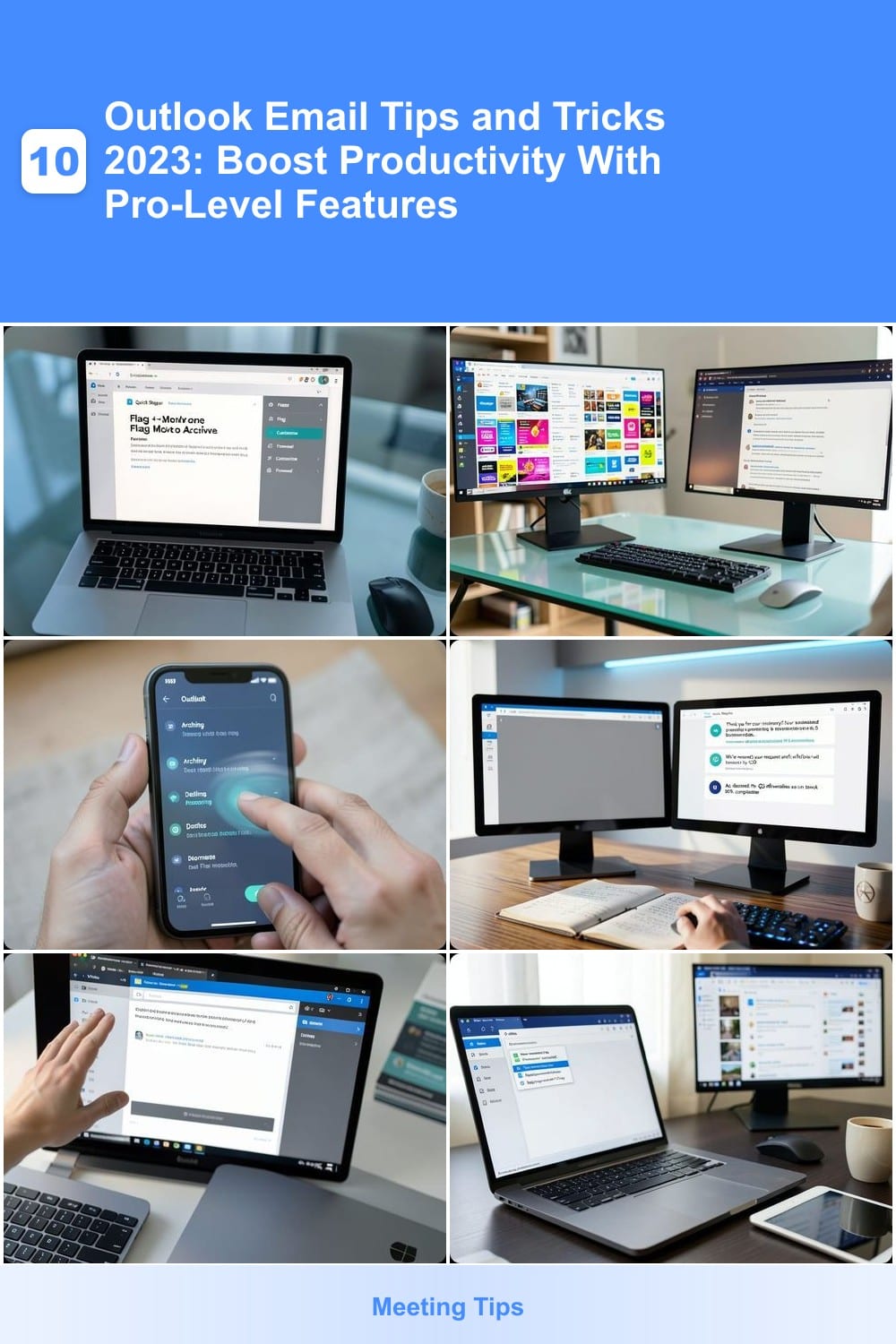
Drowning in emails but craving speed? Outlook’s Quick Steps lets you turn repetitive tasks—like flagging, categorizing, or forwarding—into one-click actions with customizable shortcuts. No more clicking through menus to handle the same steps daily. Simply assign an action (e.g., "Flag + Move to Archive") to a button, and boom: complex workflows become effortless.
To set it up, go to the Home tab, click Quick Steps, and choose Create New Quick Step. Name it (e.g., "Client Follow-Up"), then pick actions like flagging red, forwarding to a team folder, or adding a category. Assign a keyboard shortcut (like Ctrl+Alt+1) to trigger it instantly. Pro tip: Use Quick Steps for replies to auto-insert templates or CC your manager—saving minutes per email that add up to hours weekly.
This is your secret weapon for high-volume inboxes, whether you’re a sales rep chasing leads, a manager juggling approvals, or a freelancer drowning in client emails. Turn manual work into muscle memory and reclaim your focus. ⚡
Focused Inbox for Priority Management
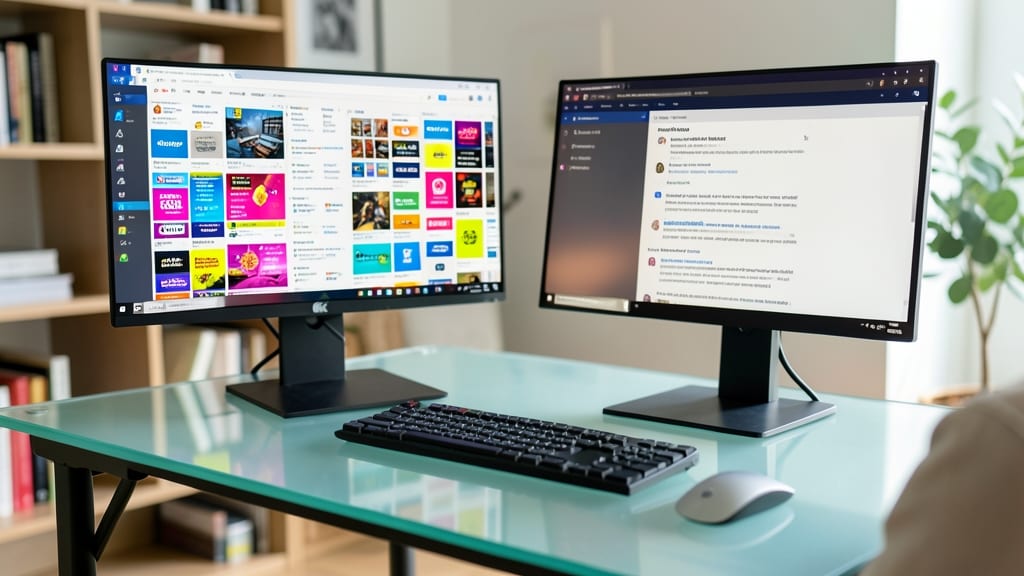
Drowning in a sea of promotional emails, newsletters, and low-priority messages while critical work emails get buried? Outlook’s Focused Inbox uses AI-powered sorting to automatically separate what truly matters from the noise—no manual filtering required. This feature analyzes your email habits to prioritize messages from senders you engage with most, ensuring high-value emails appear first while distractions fade into the background.
To enable it, simply toggle Focused Inbox in your Outlook settings (under View > Focused Inbox). The AI learns over time, adjusting to your preferences—like flagging emails from your manager or marking marketing emails as low priority. For extra control, use the Focused Inbox tab to review or move emails between the Focused and Other sections. Pro tip: Pair it with Rules (covered later) to fine-tune exclusions, like blocking all newsletters from specific domains.
This is your lifeline if you’re a freelancer juggling client emails, a manager drowning in internal updates, or anyone who’s spent too long scrolling past irrelevant messages. Let Outlook’s AI do the heavy lifting so you can focus on what actually moves the needle. ✨
Swipe Actions for Mobile Efficiency
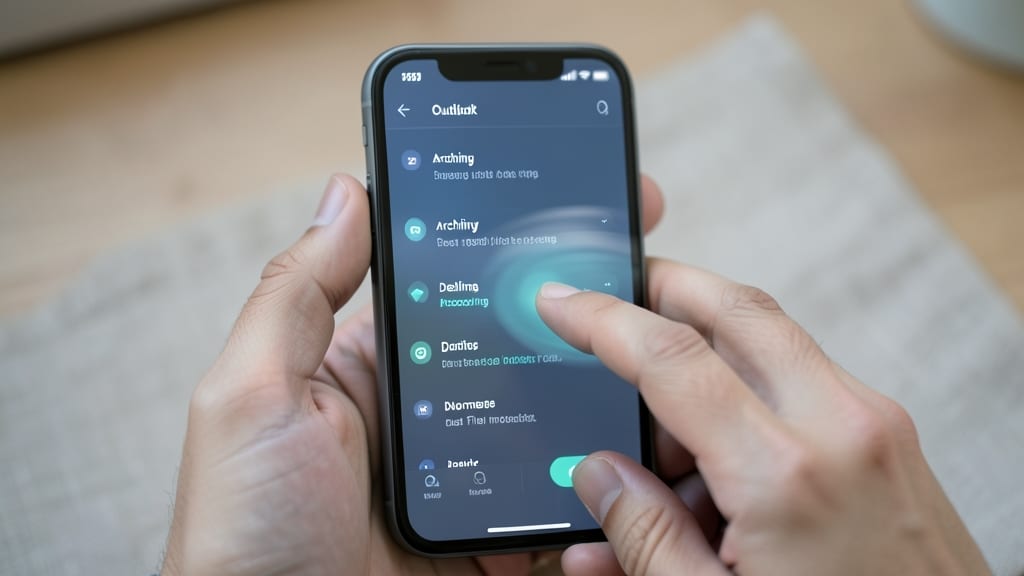
Tired of tapping through menus to manage emails on your phone? Outlook’s swipe gestures turn your mobile app into a speedy, touch-friendly powerhouse—no extra taps required. With a simple left or right swipe, you can archive, delete, or snooze emails in seconds, keeping your inbox flowing smoothly while you’re on the move.
Customize your swipe actions in Settings > Swipe Actions to match your workflow. Need to prioritize? Swipe right to flag emails or left to mark as unread. For busy professionals, this means handling dozens of emails per minute without lifting your finger from the screen—ideal for commutes, meetings, or quick check-ins.
Perfect for remote workers, sales teams, or anyone glued to their phone, these gestures eliminate friction and keep your email game sharp. ⚡
Email Templates for Repeated Responses
Tired of typing the same responses over and over? Outlook’s email templates let you save time by storing pre-written replies—whether it’s a customer service FAQ, a standard HR acknowledgment, or a recurring project update. With just a few clicks, you can insert a template into a new email, customize it as needed, and send it instantly.
To get started, compose your response as usual, then click File > Save As > Outlook Template (.oft). These templates sync across devices, so you can access them on your desktop, tablet, or phone. For teams, Outlook even supports shared template libraries in Exchange environments, ensuring everyone uses consistent messaging. Plus, you can categorize templates by topic (e.g., "Onboarding," "Invoices") for quick access.
This trick is a game-changer for customer service reps handling repetitive inquiries or HR professionals sending routine approvals. Spend less time typing and more time focusing on what matters. ✨
Keyboard Shortcuts Cheat Sheet
Tired of reaching for the mouse every time you draft a reply or search your inbox? Outlook’s keyboard shortcuts can cut your email time by 30% or more—no mouse required. These hidden commands let you compose, navigate, and manage emails at lightning speed, turning repetitive tasks into effortless keystrokes.
Memorize Ctrl+Shift+K to instantly compose a new email, Ctrl+E to search your inbox, and Ctrl+Shift+A to archive messages in bulk. For power users, Alt+Enter opens the message details pane, while Ctrl+Shift+F jumps to the Send/Receive tab. Pro tip: Use F6 to cycle through Outlook’s navigation panes—perfect for multitaskers who juggle folders and composer windows.
This trick is a game-changer for developers, executives, or anyone drowning in emails. Skip the mouse fatigue and reclaim hours weekly with these muscle-memory shortcuts. 💻
Rules for Auto-Organizing Emails
Tired of manually sorting through hundreds of emails every day? Outlook’s Rules feature lets you set up automated filters that work behind the scenes—no lifting a finger required. Whether it’s moving newsletters to a designated folder or flagging high-priority messages from your boss, these rules turn passive inboxes into proactive powerhouses.
Create rules based on sender, keywords, or subject lines (e.g., auto-forwarding invoices to your accounting folder or marking client emails with a red flag). You can even set conditions like "if the email contains ‘urgent’ in the subject, move it to my @Me folder." Rules work across Outlook Desktop, Web, and Mobile, so your email stays organized no matter where you check it.
Perfect for small business owners, freelancers, or anyone drowning in promotional emails—this is the ultimate "set and forget" tool for reclaiming hours each week. ⚡
Focused Inbox Customization Options
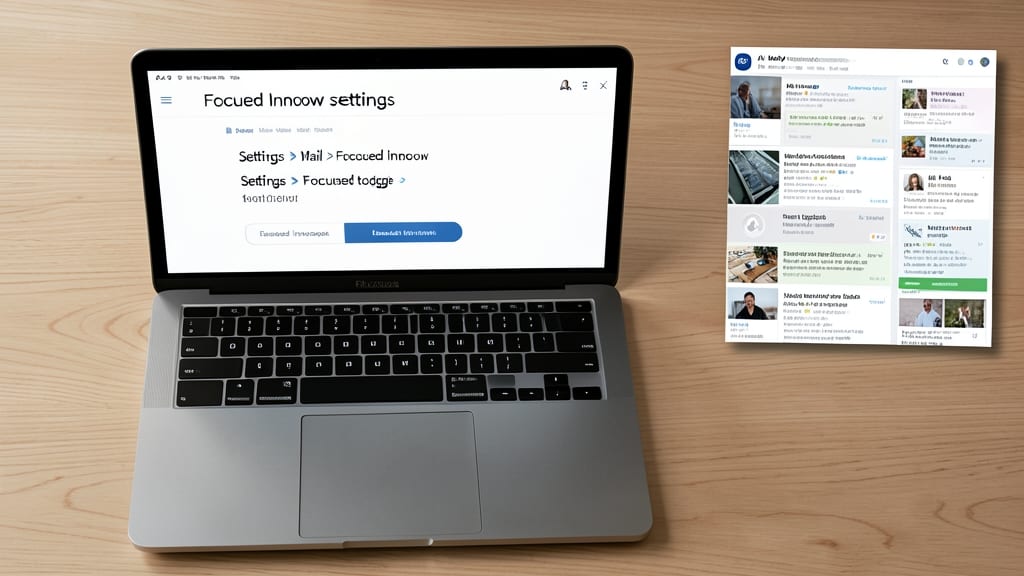
Tired of your Focused Inbox drowning in irrelevant newsletters or internal updates that don’t need your immediate attention? Outlook’s customization tools let you take control—without sacrificing the AI-powered sorting you rely on.
Start by navigating to Settings > Mail > Focused Inbox, where you can exclude specific senders, domains, or even keywords (like "marketing" or "meeting notes") from appearing in your priority list. For example, block all emails from a newsletter domain while keeping genuine work-related messages. You can also toggle the Focused Inbox on/off entirely for days when you prefer a traditional inbox view.
This tweak is a game-changer for team leads, freelancers, or anyone juggling multiple email streams—ensuring only what truly matters lands in your Focused tab. ⚡
Track Email Opens and Replies
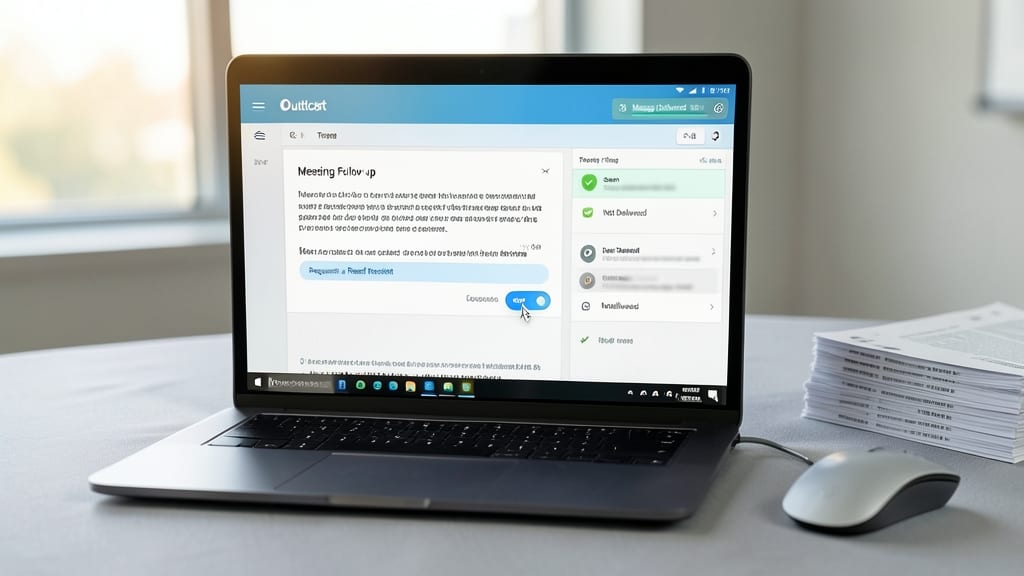
Ever sent an email that felt like shouting into the void? Outlook’s read receipts and tracking features turn guesswork into certainty—letting you know exactly when (or if) your message was seen. No more playing phone tag with critical follow-ups.
Enable delivery receipts (automatically included in Outlook) to confirm when emails hit the recipient’s inbox, and read receipts (via File > Properties > Request a Read Receipt) to track opens. For Outlook 365 users, the Delivery Optimization feature even shows if attachments were downloaded. Pro tip: Use conditional formatting to highlight unopened emails in your Sent Items folder for quick follow-ups.
This is a game-changer for sales teams chasing leads, managers coordinating deadlines, or anyone who’s ever wondered, “Did they even get this?” Turn passive emailing into proactive communication with just a few clicks. ✨
Search Operators for Faster Finds
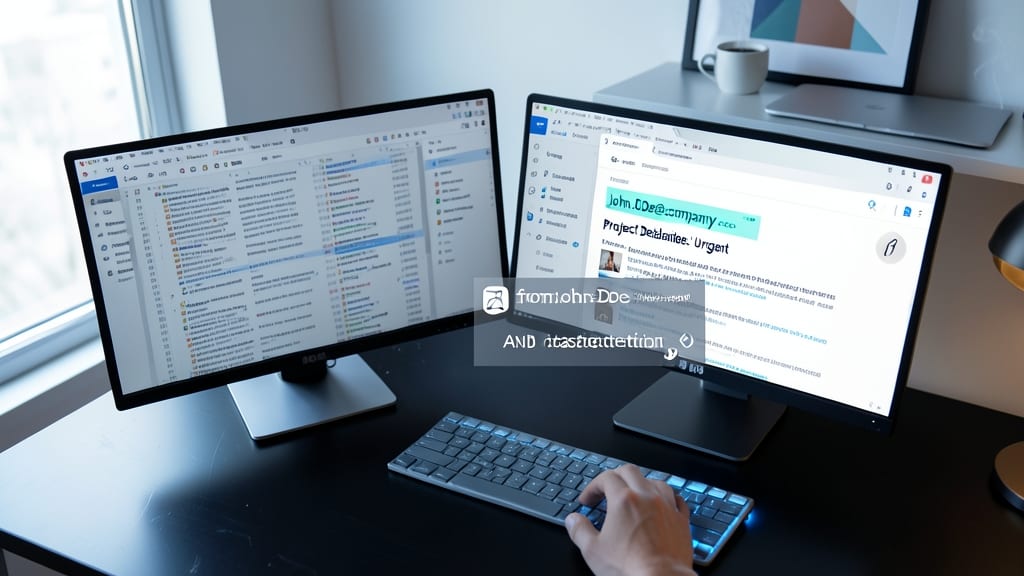
Tired of scrolling through hundreds of emails to find that one important message? Outlook’s advanced search operators turn your inbox into a search engine—no more guessing or endless scrolling. With just a few keystrokes, you can pinpoint emails by sender, subject, or even attachments, cutting search time from minutes to seconds.
Use operators like from:john@company.com to filter by sender, subject:meeting to find emails by keyword, or has:attachment to locate files instantly. Combine them for precision: from:manager subject:report has:attachment narrows results to exact matches. Outlook even supports date ranges (on:2023-01-01..2023-01-31) and flagged emails (flag:yes) for laser-focused searches.
This trick is a game-changer for busy professionals, project managers, or anyone drowning in emails—no more wasted time hunting for what you need. ⚡
Clean Up Your Inbox with Sweep
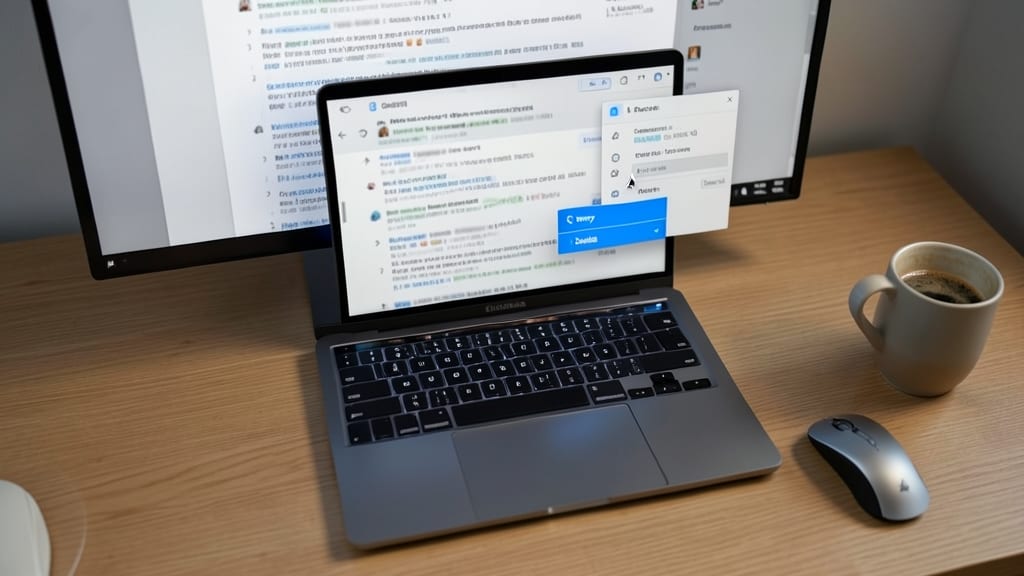
Tired of staring at an inbox packed with outdated emails that you’ll never need again? Outlook’s Sweep feature lets you permanently delete or archive entire conversations with just a few clicks—no manual sorting required.
Simply right-click a conversation, select Sweep, and choose between deleting forever or archiving to a folder. It’s perfect for cleaning up old receipts, newsletters, or threads you’ve already resolved. The best part? You can set custom rules to sweep emails older than a certain date or from specific senders automatically.
This is the ultimate tool for anyone who wants a zero-effort inbox refresh—ideal for busy professionals or students drowning in digital clutter. ✨