
Tip & Trick
Remote work offers flexibility but exposes you to cyber threats like phishing, malware, and data breaches. These 10 security best practices—ranked by impact—will fortify your digital workspace and keep hackers at bay before they exploit vulnerabilities.
Multi-Factor Authentication for Every Account

If you’ve ever reused the same password across multiple accounts (we’ve all been there), multi-factor authentication (MFA) is your first line of defense against credential theft. Even a weak password becomes nearly impenetrable when paired with a second verification layer—whether it’s a fingerprint scan, hardware token, or one-time code sent to your phone.
Most platforms now support TOTP (Time-based One-Time Password) or FIDO2 standards, which eliminate SMS vulnerabilities. Services like Google Authenticator, Authy, or YubiKey offer seamless integration with email, banking, and cloud accounts. The best part? Many providers now offer zero-configuration MFA for critical accounts, meaning you can enable it in under a minute without technical hassle.
This isn’t just for IT admins—every remote worker should enable MFA, especially for email, financial apps, and remote access tools. It’s the digital equivalent of locking your front door and setting an alarm. ⚡
Zero-Trust Network Access Protocol
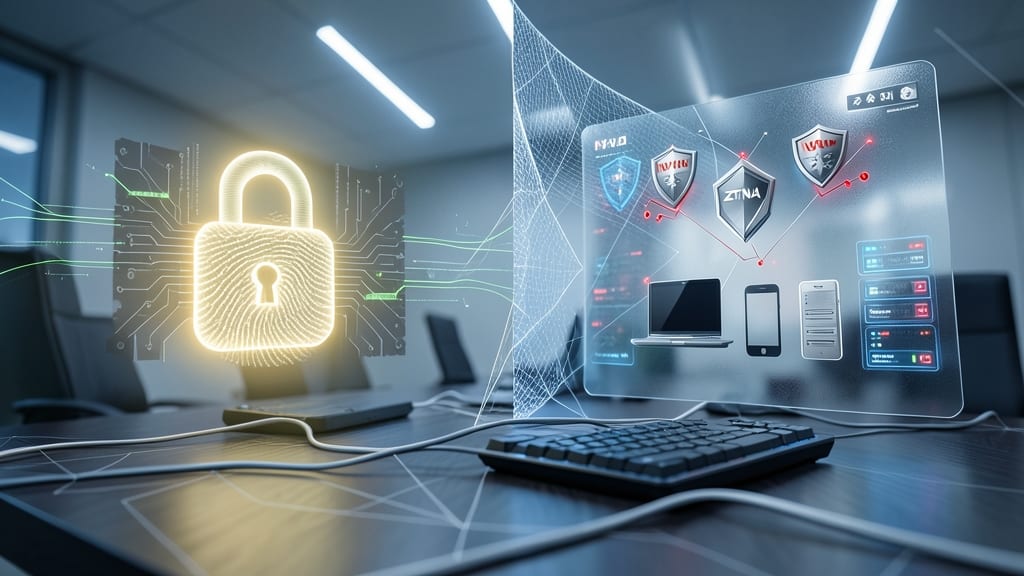
Tired of VPNs that only encrypt your traffic but still trust every device on your network? Zero-Trust Network Access (ZTNA) flips the script by requiring verification for every connection—no exceptions. Unlike VPNs, which assume trust once you’re inside, ZTNA treats every access request as a potential threat, drastically cutting down on lateral movement risks from breached accounts.
This protocol uses continuous authentication (not just login credentials) to grant access only to approved devices with up-to-date security patches and compliance checks. Solutions like Zscaler Private Access or Cloudflare Access integrate seamlessly with your existing tools, offering granular controls over apps and data without exposing your entire network. The result? 90% fewer lateral movement incidents—because even if one account is compromised, attackers can’t hop freely across your systems. ⚡
Password Manager with Breach Monitoring
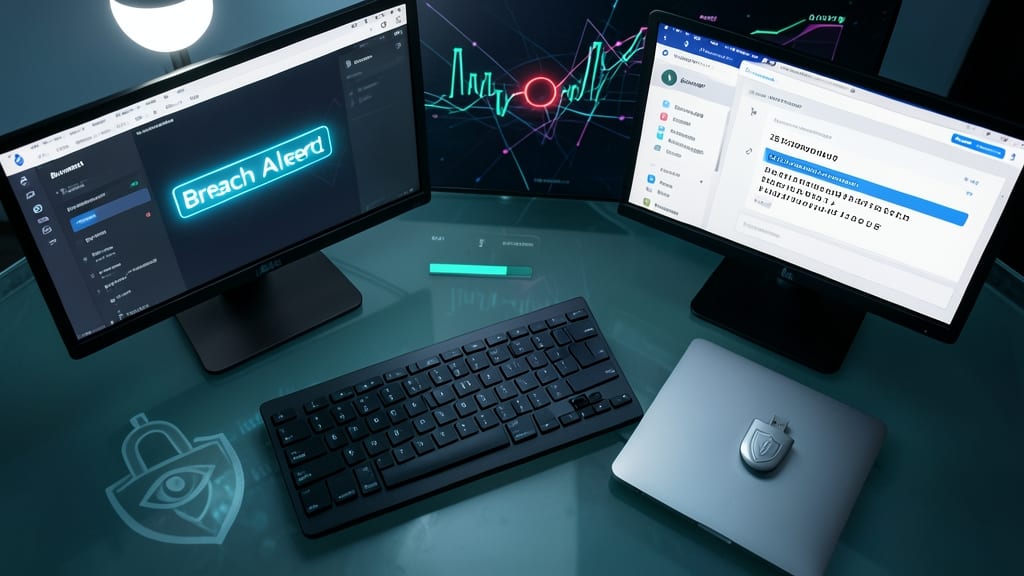
Tired of resetting passwords after every breach? A password manager with breach monitoring like Bitwarden or 1Password scans the dark web for exposed credentials and flags them in real-time—before hackers exploit them.
These tools generate unique, 25-character passwords for every account, auto-fill forms securely, and sync across devices. When a breach occurs, you’ll get an instant alert like, "Your old LinkedIn password was leaked in 2021—change it now." Some even integrate with identity monitoring services to lock compromised accounts automatically.
Perfect for remote workers juggling multiple accounts—especially those in finance or healthcare where credential reuse is a major risk. 💡
Endpoint Detection and Response Software
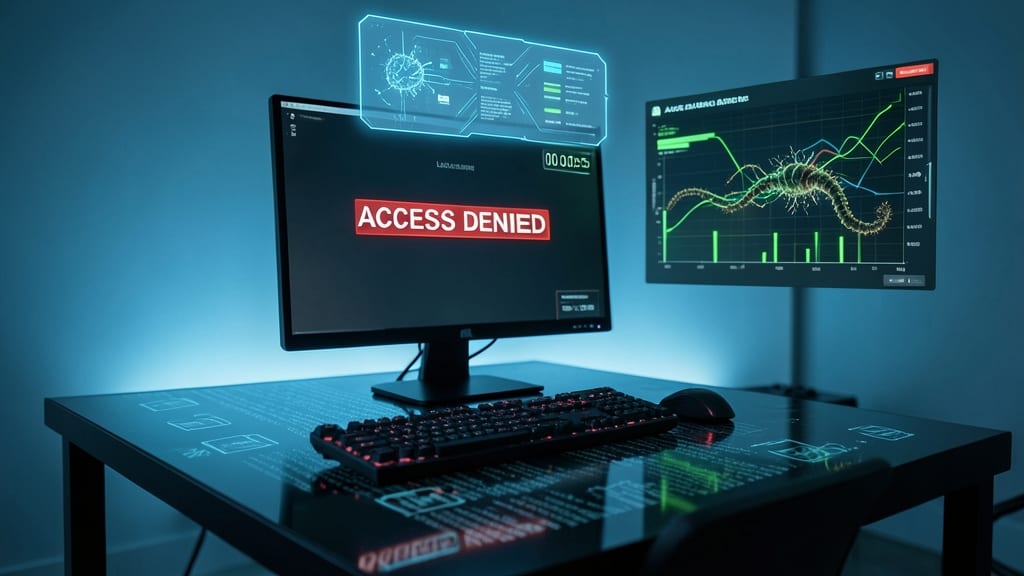
Ransomware attacks don’t just infect—they encrypt your files in minutes, locking you out forever. Endpoint Detection and Response (EDR) software acts as a silent guardian, using AI-driven behavioral analysis to detect and neutralize threats like Emotet or LockBit before they execute.
Solutions like CrowdStrike Falcon or SentinelOne monitor 1,000+ attack patterns in real time, including zero-day exploits, while integrating with Windows Defender ATP or Linux auditd for hybrid environments. They provide automated containment (quarantining malicious processes) and detailed forensic reports to help IT teams investigate breaches post-incident.
This is non-negotiable for remote workers handling sensitive data—especially those juggling Windows/Linux dual-boot setups where traditional antivirus often falls short. 💻
Secure Wi-Fi Router Configuration Guide
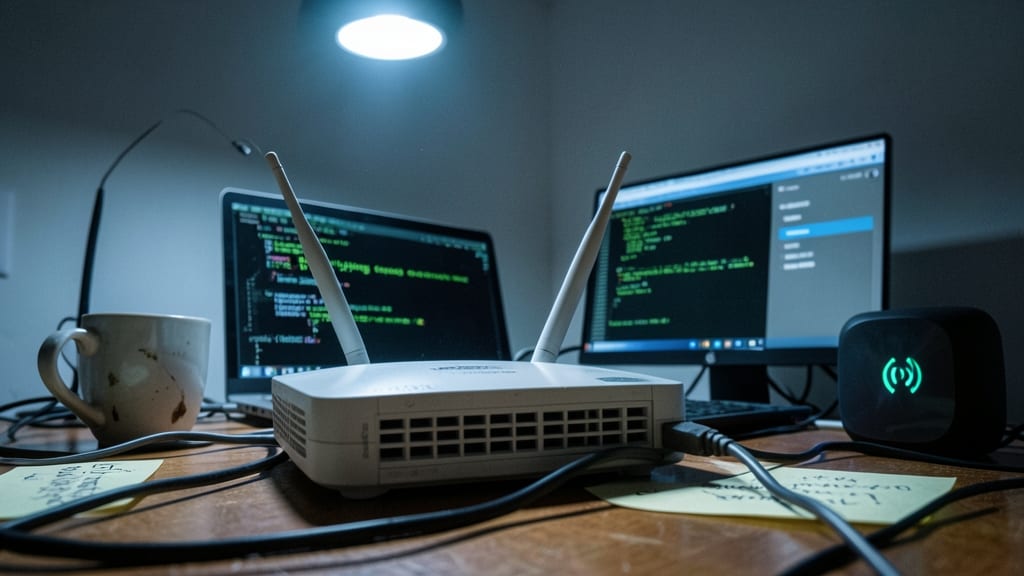
Your home Wi-Fi is the front door to your digital life—but most routers ship with default SSIDs and weak security settings that hackers can exploit in minutes. A quick configuration tweak can turn your network from a vulnerability into a fortress, blocking everything from Wi-Fi hijacking to man-in-the-middle attacks.
Start by renaming your SSID (network name) to something unique—avoid manufacturer defaults like "Xfinity3456." Then, upgrade encryption to WPA3 (not WPA2) in your router’s admin panel, and disable WPS (Wi-Fi Protected Setup), a common attack vector. Use a 20+ character passphrase with mixed case and symbols, and enable MAC address filtering for extra protection on guest networks.
Remote workers, freelancers, and anyone connecting sensitive devices will see the biggest payoff—this setup prevents unauthorized devices from lurking on your network and stops brute-force attacks before they start. 💻
Phishing Simulation Training Programs
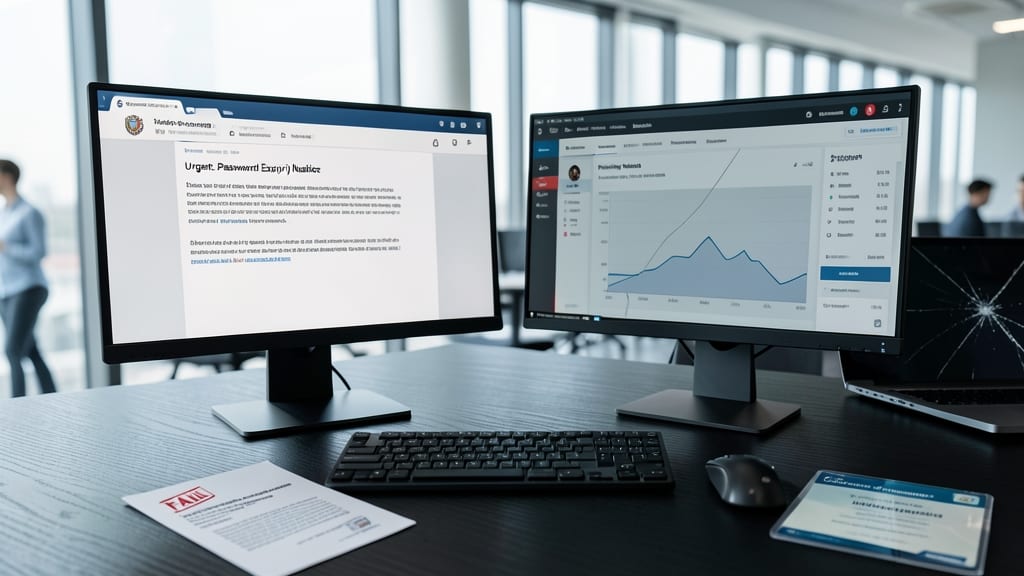
Tired of hearing about breaches caused by employees clicking suspicious links? Phishing simulation training programs turn your team into human firewalls by exposing them to realistic attacks—without the real-world consequences.
Platforms like KnowBe4 or PhishMe send customized spear-phishing emails (e.g., fake invoices, urgent CEO requests) and track how quickly employees spot red flags. After each test, they receive personalized feedback on mistakes, like overlooking mismatched email domains or urgent language. These programs also simulate voice phishing (vishing) and SMiShing to cover all attack vectors. Studies show teams improve phishing detection rates by 70% after just three simulations.
Perfect for remote teams where human error is the #1 threat vector—especially those handling sensitive data. 💡
Automated Software Patch Management
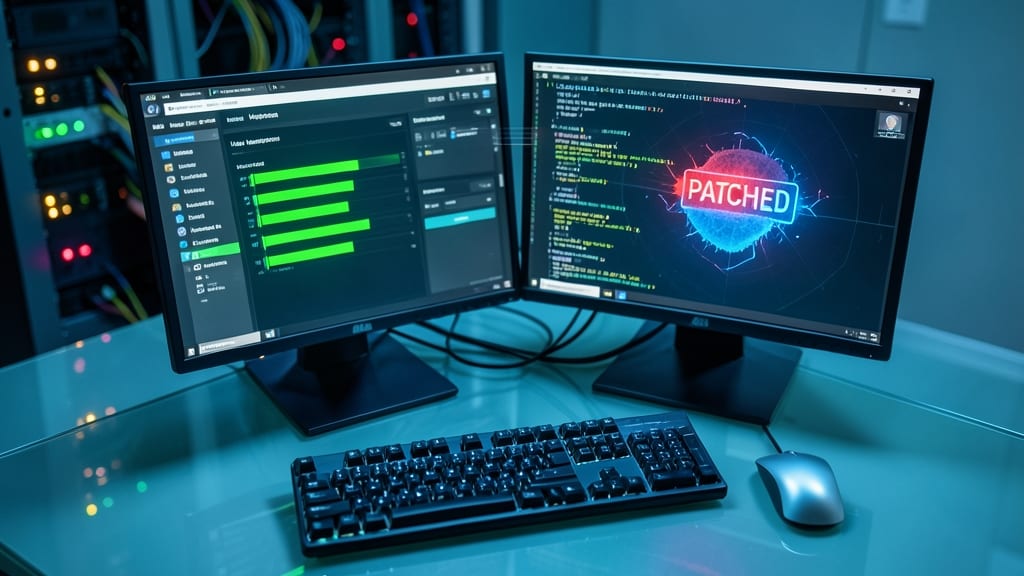
Hackers exploit unpatched software faster than you can say "Log4j exploit"—automated patch management closes those windows instantly. Unlike manual updates that get delayed, this system ensures critical fixes for Windows, Linux, and third-party apps deploy automatically, often within hours of release.
Tools like WSUS for Windows, Patch Manager Plus, or Linux's unattended-upgrades handle the heavy lifting by prioritizing updates based on vulnerability severity and system compatibility. You’ll also get real-time compliance reports to prove your systems meet security standards—critical for remote teams handling sensitive data.
This is non-negotiable for IT admins, freelancers managing client devices, or anyone running mixed environments. Set it up once, and your systems stay fortified without lifting a finger. ✨
Cloud Storage Encryption Settings
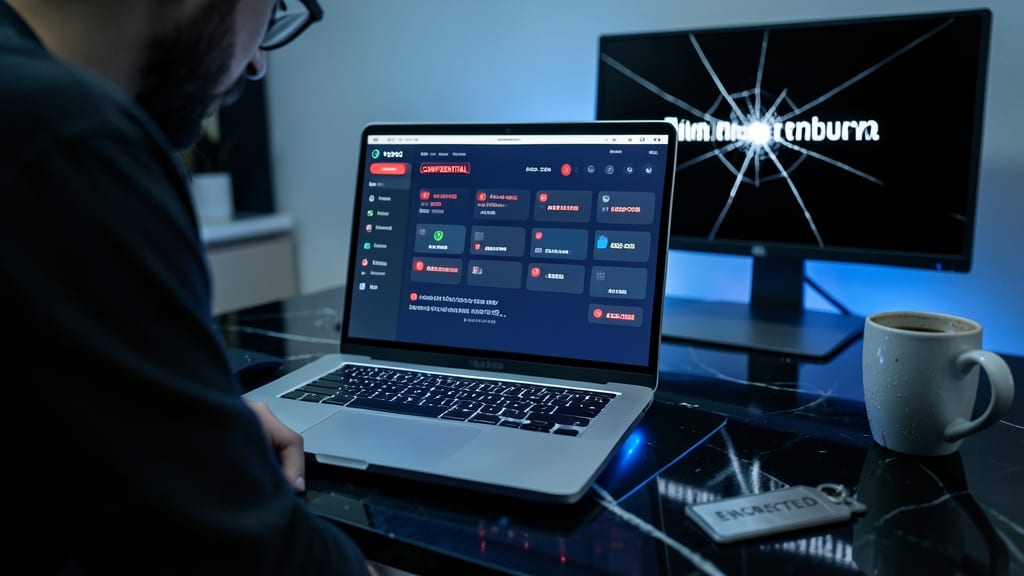
Your sensitive files in cloud storage deserve more protection than the default settings provide. Most providers enable encryption only when you explicitly enable it, leaving your data vulnerable to leaks if your account is ever compromised—whether through phishing or credential theft.
Enable AES-256 bit encryption for files at rest (stored) and in transit (uploaded/downloaded) to match military-grade security. Services like Google Drive, Dropbox, and OneDrive offer this as an optional toggle in their security settings, while Proton Drive enables it by default. This ensures even if hackers breach your account, they’ll only see scrambled data without your decryption key.
This is non-negotiable for freelancers handling client data, remote teams with confidential projects, or anyone storing health records, financial docs, or proprietary code. A 5-minute setup now could save you from a data breach nightmare later. ✨
Secure Remote Desktop Protocols
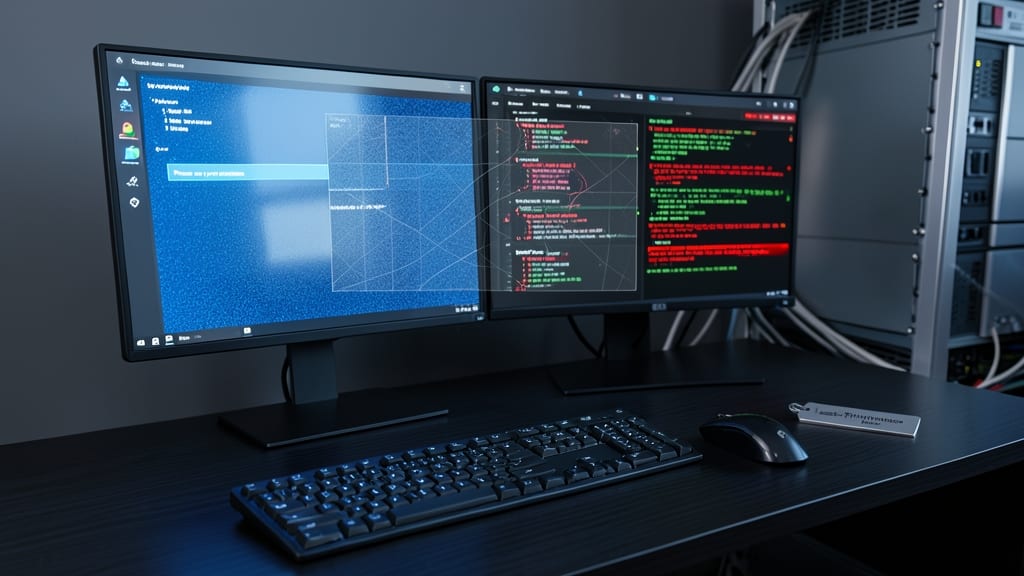
Remote Desktop Protocol (RDP) is a favorite target for attackers, but Network Level Authentication (NLA) and least-privilege access can turn it into a fortress. Unlike VPNs, which only encrypt traffic, NLA verifies credentials before the connection even establishes—blocking brute-force attacks at the door.
Enable NLA in Windows Group Policy (Computer Configuration > Administrative Templates > Windows Components > Remote Desktop Services > Remote Desktop Session Host > Security) and set users to non-admin accounts with only necessary permissions. This stops credential stuffing attacks cold, since even if a password is stolen, the attacker gains no elevated access. For extra security, enforce TLS 1.2+ encryption and disable RDP over public networks. 🔧
Ideal for IT admins managing remote Windows workstations or freelancers accessing company resources, this setup adds zero complexity while slashing attack surfaces. The best part? It’s built into modern Windows—no third-party tools required. ⚡
Incident Response Plan Template
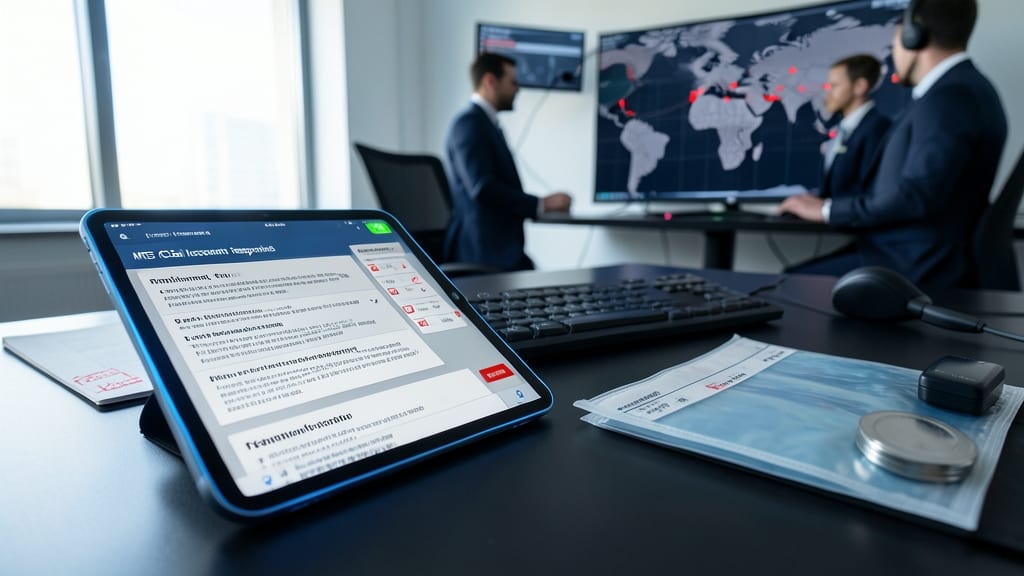
Even the best defenses can fail—when a breach occurs, your incident response plan becomes your lifeline. This pre-built template from NIST and CISA provides step-by-step containment protocols, legal compliance checklists, and forensic preservation guidelines to act fast and limit fallout.
Key features include real-time communication triggers for stakeholders, evidence collection workflows to preserve digital forensics, and escalation paths for critical systems. The template even maps to GDPR, HIPAA, and CCPA requirements, so you’re covered regardless of industry. Best of all, it’s customizable for remote teams of any size.
This isn’t just for IT teams—freelancers, small businesses, and remote workers handling sensitive data should download it now. A well-documented response plan turns chaos into control. ✨