
Coding
Excel’s math and trig functions unlock powerful data analysis capabilities—from financial modeling to engineering calculations. Mastering these 10 essential functions will transform how you crunch numbers and solve complex problems efficiently.
SUM Function for Basic Arithmetic Calculations
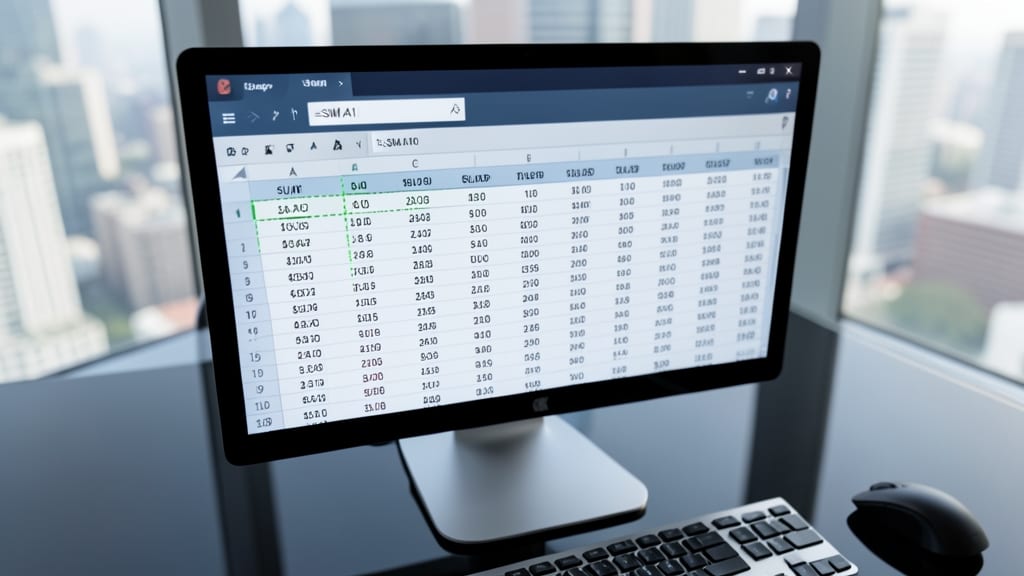
Forget calculators—Excel’s SUM function is the ultimate tool for adding numbers in seconds, whether you’re tallying sales, budgeting, or analyzing data. With just one simple formula, you can add values across cells, entire columns, or even non-adjacent ranges without writing a single line of code.
Type =SUM(range)—like =SUM(A1:A10)—and Excel instantly calculates the total. Need to add scattered values? Use =SUM(A1, C3, E5) to mix and match cells. It even ignores empty or text-filled cells, making it foolproof for messy datasets. Works in Excel 365, 2019, and older versions, so every user can leverage it.
Perfect for beginners learning spreadsheets or accountants crunching monthly reports, SUM is the first function every Excel user should master. It’s the building block for more complex calculations—and it’s free. ⚡
AVERAGE Function for Statistical Analysis

Tired of manually calculating averages from messy datasets? Excel’s AVERAGE function instantly computes the mean value—whether you’re analyzing test scores, sales metrics, or quality control measurements—while automatically ignoring empty or text-filled cells. No more headaches from partial data or manual tallying.
Simply type =AVERAGE(range) (e.g., =AVERAGE(B2:B100)) to get the average of any numeric range. Need to exclude outliers? Combine it with TRIMMEAN() for robust statistical analysis. Works seamlessly across Excel 365, 2019, and older versions, making it the go-to tool for educators, market researchers, and quality assurance teams.
Perfect for grading systems, customer satisfaction surveys, or manufacturing quality reports, this function turns raw numbers into actionable insights with just a few clicks. ⚡
SIN and COS for Trigonometric Calculations

Need to calculate angles for engineering projects, physics simulations, or even game design? Excel’s SIN and COS functions handle trigonometry with precision—just input an angle in radians (or convert degrees using DEGREES()) to get accurate sine/cosine values instantly.
These functions work seamlessly with RADIANS() to convert degrees to radians, ensuring compatibility with real-world measurements. For example, =SIN(RADIANS(30)) returns the sine of 30 degrees, while =COS(PI()/4) calculates the cosine of 45 degrees. Pair them with DEGREES() to reverse-engineer angles from trig values—critical for structural analysis or navigation systems.
Ideal for civil engineers, physicists, or hobbyists designing 3D models, these functions eliminate manual calculations and reduce errors. Master them to turn complex trig problems into simple spreadsheet tasks. ✨
ROUND Function for Precise Number Formatting

Tired of messy decimals ruining the clarity of your financial reports or inventory counts? The ROUND function in Excel is your secret weapon for instantly cleaning up numbers while keeping them accurate.
With just two arguments—=ROUND(number, num_digits)—you can round numbers up or down to any decimal place. Need to standardize pricing to two decimal points? Use =ROUND(A2, 2). Working with large datasets where every decimal counts? The function preserves precision while eliminating clutter, making your spreadsheets look professional and easy to read.
Accountants, inventory managers, and data analysts will appreciate how this function saves time and reduces errors in reports. Whether you're formatting currency or ensuring consistency in measurements, ROUND keeps your numbers neat and reliable. ✨
POWER Function for Exponential Calculations

Tired of manually multiplying numbers repeatedly for compound interest or population growth? The POWER function in Excel handles exponential calculations in a single step, saving hours of tedious work.
With syntax like =POWER(base, exponent), you can instantly calculate values like $10,000 invested at 5% for 10 years (result: $16,289). It’s perfect for financial projections, scientific models, or any scenario where numbers grow exponentially. The function even works with negative exponents for reciprocals, eliminating guesswork.
Financial analysts and data scientists rely on POWER to build accurate forecasts without manual errors. Whether you're modeling business growth or calculating decay rates, this function turns complex math into a breeze. ✨
ATAN2 Function for Advanced Angle Calculations

Stuck trying to calculate angles in all four quadrants? The ATAN2 function solves this by accepting both x and y coordinates—unlike ATAN(), which fails when signs change. This makes it perfect for navigation systems, physics simulations, or any project where direction matters.
Simply input ATAN2(y,x), and Excel returns the angle in radians (use DEGREES() to convert). For example, ATAN2(3,4) correctly returns 0.6435 radians (36.87°), while ATAN(3/4) would give the wrong quadrant. It’s built into Excel 2016 and later, including Excel 365.
Game developers and engineers rely on ATAN2 for precise spatial calculations—like projectile trajectories or robot pathfinding. If you’re working with coordinates, this is your go-to function. ✨
FACT Function for Probability and Combinatorics
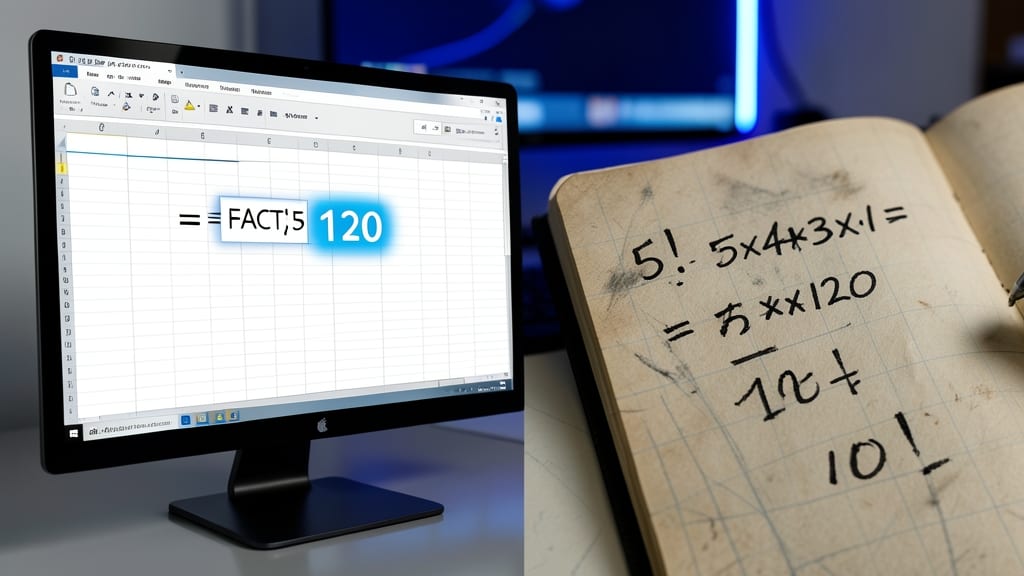
Tired of calculating 5! × 10! by hand for probability models? The FACT function in Excel does it in milliseconds—no manual multiplication errors or wasted time.
Simply type =FACT(number), and Excel instantly returns the factorial (e.g., =FACT(5) yields 120). This is a game-changer for combinatorics (e.g., lottery odds, permutations) or statistical analysis (e.g., Poisson distributions, binomial coefficients). Even better, it handles large numbers up to 170! without overflow errors.
Perfect for students, data scientists, or anyone crunching numbers in Excel 365 or Excel 2019+. Say goodbye to calculator fatigue! ✨
LOG Function for Scientific and Engineering Data

When your data spans orders of magnitude—like sound intensity or chemical concentrations—the LOG function turns unwieldy exponential values into manageable logarithmic scales. This isn’t just another math tool; it’s the secret weapon for chemists, acoustics engineers, and data scientists analyzing trends across vast ranges.
Use =LOG(number, [base]) to convert values to natural (base e) or custom logarithms. For example, =LOG(0.0001) reveals -9.21 (base 10), perfect for pH scales, while =LOG(100, 10) returns 2—ideal for decibel calculations. Excel’s built-in 10^ and EXP() functions let you reverse calculations effortlessly, completing the logarithmic cycle.
Researchers studying half-life decay or signal attenuation will find this function indispensable. Pair it with LOG10() for base-10 conversions (common in engineering) and watch your datasets transform from chaotic to clear. ✨
IF Function for Conditional Math Logic

Need to automate decisions in your spreadsheets? The IF function lets you combine math with logic—perfect for scenarios like "If sales exceed $10K, apply a 10% discount." This versatile tool evaluates conditions and returns different results based on true/false logic.
Use the syntax =IF(logicaltest, valueiftrue, valueif_false) to create dynamic pricing tables, grading systems, or inventory alerts. For example, =IF(A1>10000, A1*0.9, A1) automatically applies a 10% discount when revenue hits $10K. Nest multiple IFs (up to 64 levels in Excel 365) for complex rules, or pair it with SUMIFS for conditional calculations.
Ideal for small business owners managing promotions, educators automating grading, or analysts building dynamic dashboards. Master this, and you’ll eliminate repetitive manual checks. ✨
SUMPRODUCT for Multi-Criteria Calculations

Tired of writing VBA macros just to calculate weighted averages or filter database queries? SUMPRODUCT is your secret weapon—it multiplies ranges and sums the results in one step, replacing manual loops and complex formulas.
This function shines when you need to combine multiple criteria, like calculating weighted scores (e.g., =SUMPRODUCT(A2:A10, B2:B10)) or filtering data without helper columns. It’s 100% native to Excel, works across versions (including Excel 365 and 2016), and handles arrays seamlessly—no extra plugins required.
Perfect for financial analysts, data scientists, or anyone crunching numbers with layered conditions. Ditch the guesswork and let SUMPRODUCT do the heavy lifting. ✨