
Software
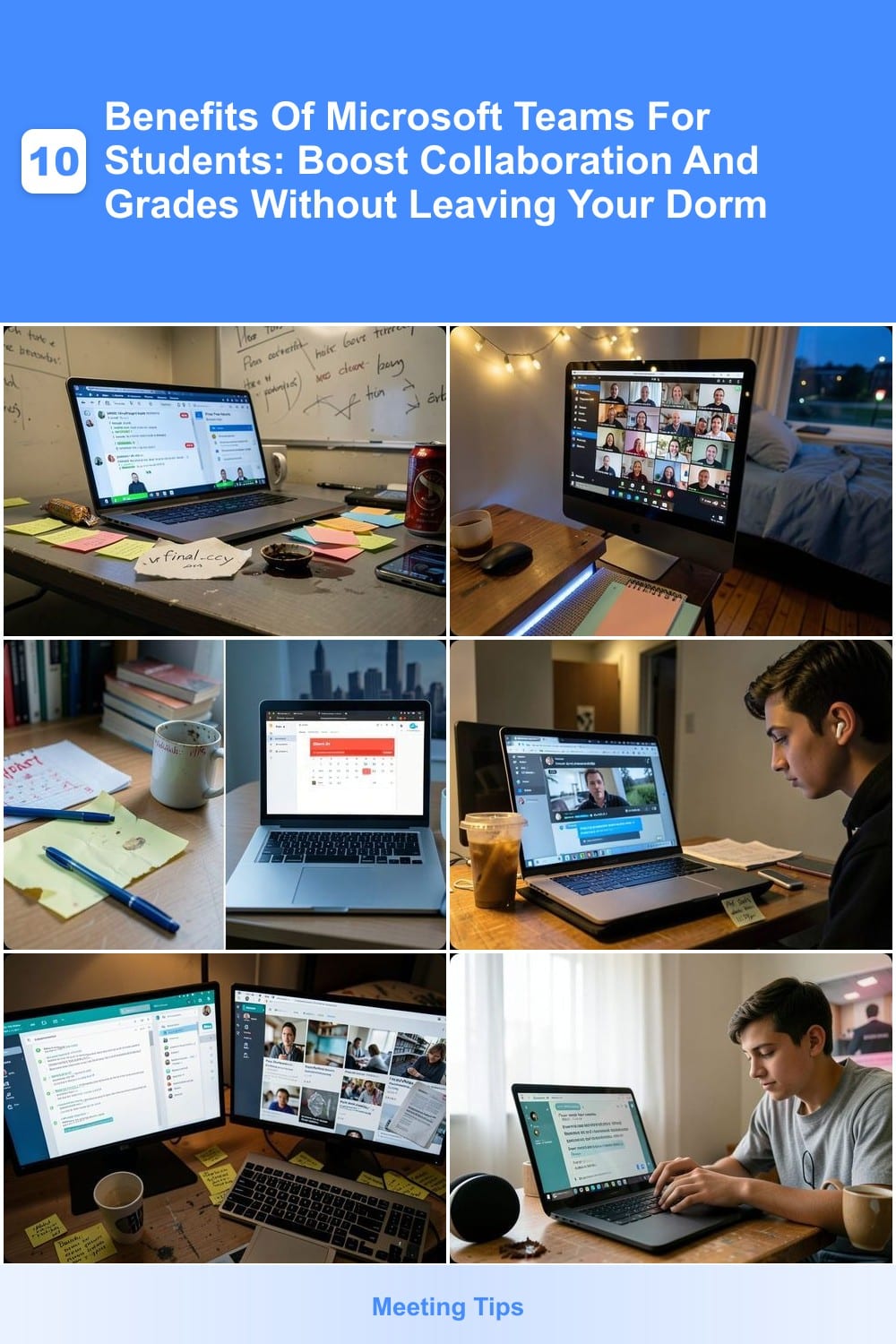
Microsoft Teams isn’t just for office workers—it’s a game-changer for students balancing group projects, study sessions, and professor feedback. These 10 benefits show how this free tool can simplify your academic life, improve teamwork, and even help you ace assignments without ever leaving your dorm room.
Real-time group project collaboration
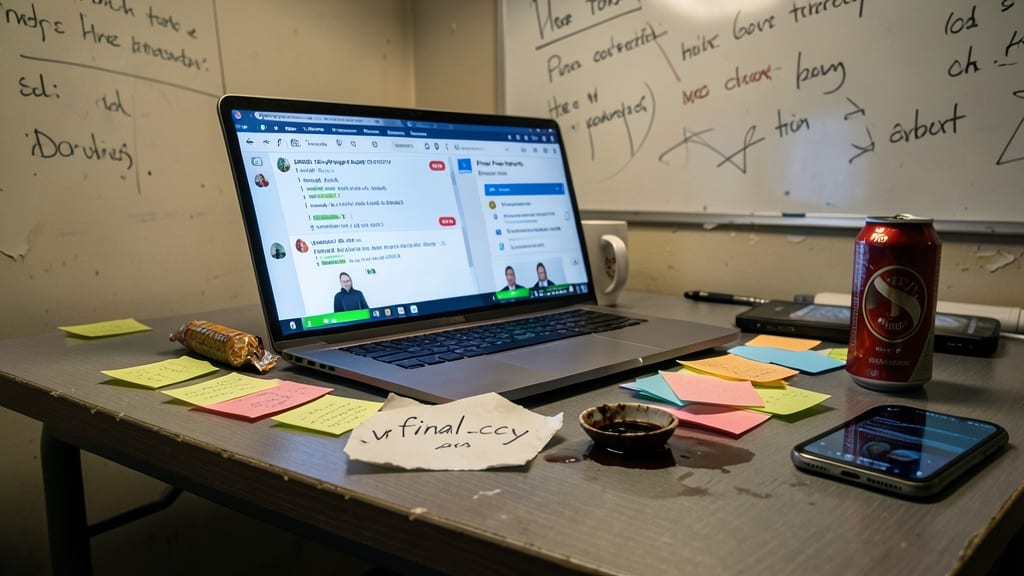
Imagine your group project deadline looming while you’re stuck in an endless loop of email chains—"I saved v3final.docx… no, v4final.docx!"—and suddenly, everything changes. Microsoft Teams’ real-time collaboration lets you and your classmates edit the same Word, Excel, or PowerPoint file simultaneously, with changes appearing live as everyone types. No more "final_final" versions or frantic "Ctrl+Z" battles—just seamless teamwork with a built-in version history to restore earlier drafts if needed.
The magic happens with co-authoring tools that highlight each contributor’s cursor and typing in different colors, so you can see who’s working on what. Need to leave feedback? Add comments directly in the document without leaving Teams, and @mention teammates to assign tasks. The shared workspace keeps all project files organized in one folder, so no one’s hunting through Dropbox or USB drives at the last minute. Plus, the mobile app syncs changes instantly, so you can review edits during lunch or before bed.
This is the ultimate lifeline for group projects with tight deadlines, research papers, or design teams where last-minute tweaks are inevitable. No more "I thought you updated this!" moments—just smooth, stress-free collaboration that actually gets the job done. ⚡
Built-in video study sessions
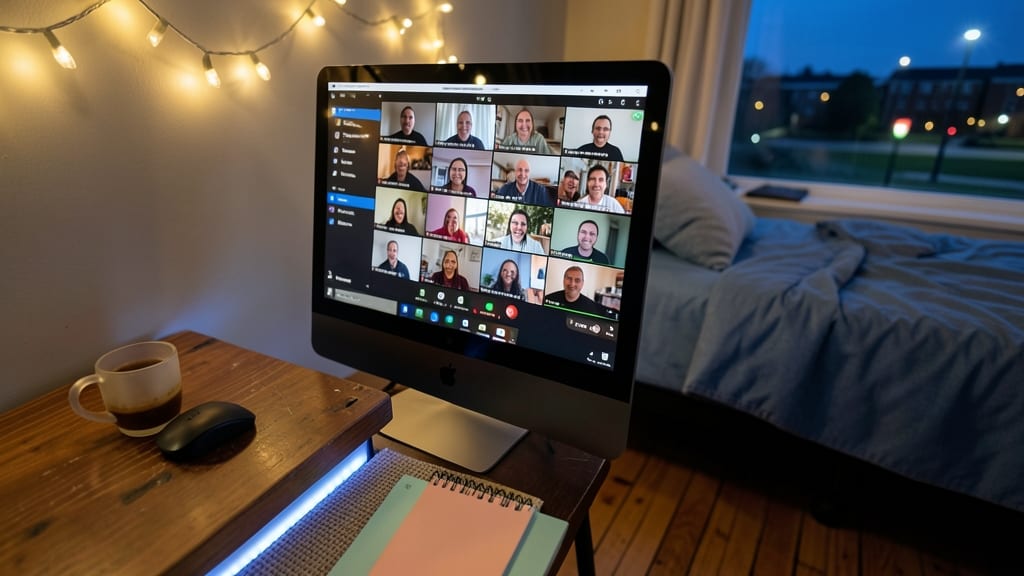
Forget the awkward silence of crowded library tables or the logistical nightmare of scheduling in-person study sessions—Microsoft Teams turns your dorm room into a collaboration hub with built-in video study tools. The platform’s crystal-clear video calls (up to 49 participants on screen) and screen-sharing let you solve problems together in real time, whether you're debugging code, dissecting a case study, or practicing a language conversation.
Need to visualize ideas? The virtual whiteboard lets your team sketch diagrams, annotate documents, or brainstorm with sticky notes—all saved automatically. Pair that with breakout rooms for smaller discussions, and you’ve got a library-meets-whiteboard experience without leaving your couch. The background blur feature even keeps your messy dorm from distracting your study partners.
This is the perfect tool for STEM students tackling group assignments or language learners practicing conversations—no more missed meetups or last-minute cancellations. Just grab your laptop, join the call, and study like a pro. ✨
Automated assignment tracking
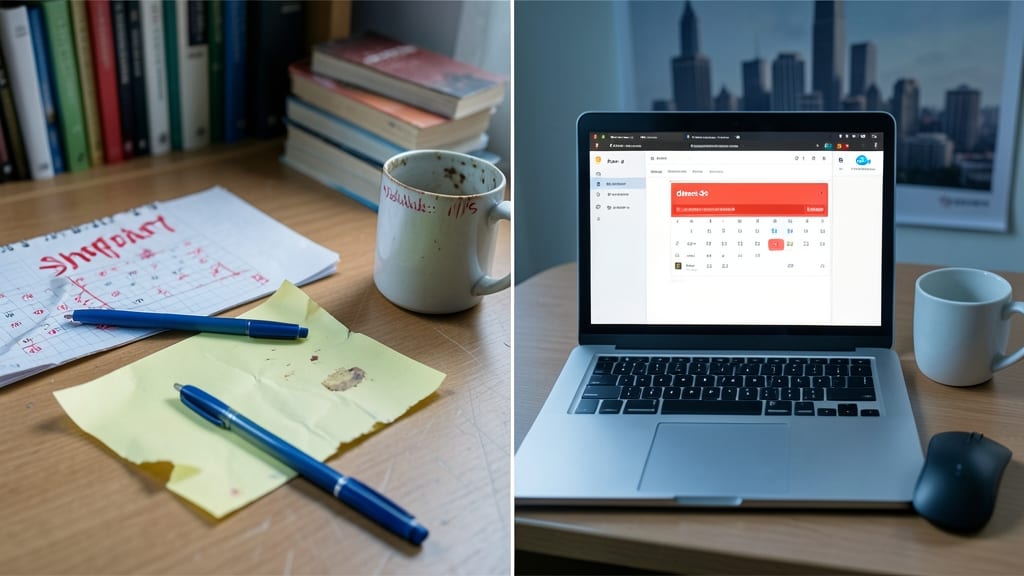
Forget scribbling deadlines on sticky notes that inevitably get lost—Microsoft Teams automatically syncs with your school’s LMS (Canvas, Blackboard, or Moodle) to push assignment due dates straight into your calendar. No manual entry, no forgotten reminders, just seamless integration that keeps your academic life organized.
The system creates color-coded deadlines with clear labels (e.g., "High Priority" or "Group Project") and even sends push notifications when time is running short. You can also set custom alerts for personal study goals, like blocking time to review notes before exams. Best of all, it works across devices, so whether you’re on your phone during a shift or your laptop in the library, nothing slips through the cracks.
This is a lifesaver for busy students balancing multiple courses, part-time jobs, or extracurriculars. Say goodbye to last-minute panic and hello to stress-free submission tracking! ⚡
Instant professor feedback channels
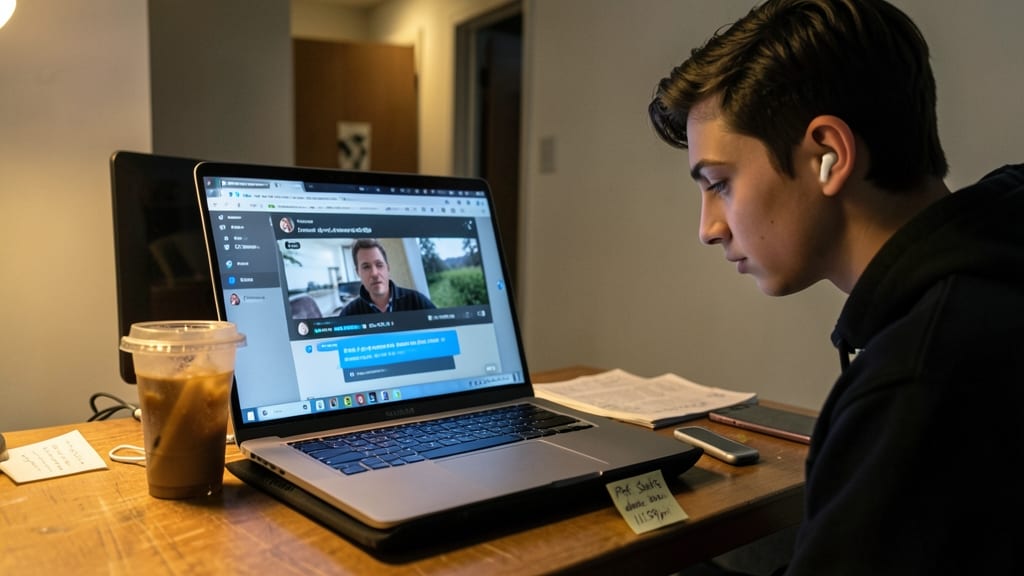
Tired of waiting days for email replies or cramming into crowded office hours? Microsoft Teams’ class channels put direct communication with professors at your fingertips—24/7.
Each course gets its own dedicated channel where instructors can post updates, host live Q&A sessions, or even record lectures for review. The @mention feature ensures your questions get noticed instantly, while persistent chat history means you’ll never lose track of important discussions. No more digging through cluttered inboxes or playing phone tag—just clear, organized communication.
This is especially useful for online students, night-shift workers, or anyone juggling multiple classes. Say goodbye to missed deadlines from unclear instructions and hello to proactive learning. ✨
File sharing without confusion
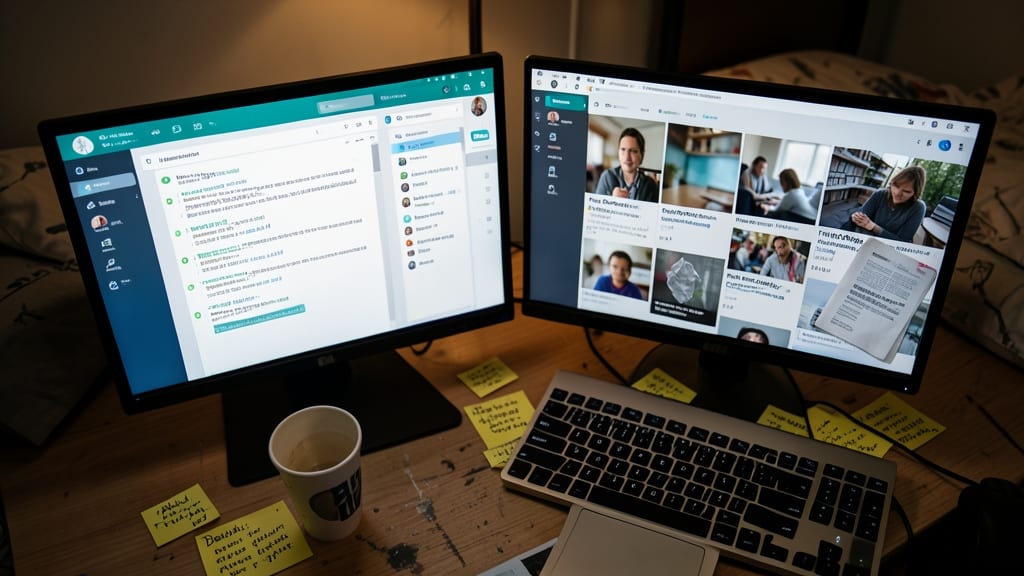
Tired of group projects derailing because someone "saved over" the latest version? Microsoft Teams turns file sharing into a stress-free zone with built-in version control and real-time collaboration—no more Dropbox chaos or confusing email attachments.
Every file in your project folder gets a version history, so you can restore previous drafts with one click. Need to leave feedback? Add comments directly on documents without leaving Teams. Plus, the shared workspace keeps everything in one place—no more hunting through multiple cloud services or USB drives.
Perfect for group projects, research papers, or design teams, this feature ensures everyone stays on the same page—literally. No more "I thought you updated this!" moments. ✨
Accessibility tools for all learners

Ever missed key points in lectures because of background noise or struggled to follow fast-paced discussions? Microsoft Teams’ built-in accessibility tools level the playing field for all learners—no extra apps needed.
The Live Captions feature transcribes spoken words in real-time during calls, perfect for students who are deaf or hard of hearing, or anyone reviewing lectures later. Immersive Reader simplifies text by breaking it into syllables, changing fonts, and even reading aloud—ideal for dyslexia or ADHD. Meanwhile, screen reader support (like JAWS or NVDA) ensures the interface is fully navigable via keyboard or voice commands. These tools work seamlessly across devices, so you’re never left out of the conversation.
Whether you’re in a hybrid class, collaborating on group projects, or attending virtual office hours, these features ensure everyone—regardless of learning style—can engage fully. No extra cost, no extra hassle. ✨
Virtual office hours with recording

Struggling to catch every word during office hours? Microsoft Teams’ virtual office hours with recording lets you schedule one-on-one meetings with professors and save them for later—no more frantically scribbling notes or replaying advice in your head.
With just a click, you can record the entire session (audio, video, and screen sharing) and store it in Teams’ cloud storage. The searchable transcripts let you jump straight to key moments, like when your professor explained that tricky calculus concept. You also get customizable playback speeds (1.25x or 1.5x) to review faster without losing clarity.
This is a game-changer for night owls, shift workers, or international students who can’t attend during published hours. Perfect for when you need to revisit feedback or share recorded advice with study partners. ✨
Integration with office 365 apps
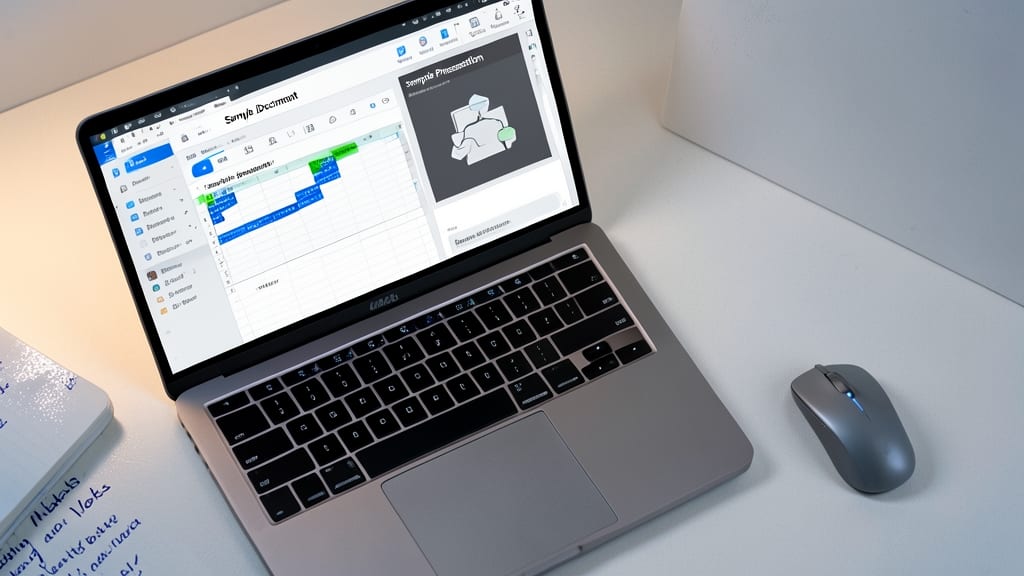
Tired of bouncing between Word, Excel, and PowerPoint just to finish that group presentation? Microsoft Teams eliminates the tab-switching chaos by embedding these Office 365 apps directly into your workflow. No more losing track of spreadsheets while drafting slides or forgetting to save changes—everything stays in one place.
With real-time co-authoring, your team can edit a PowerPoint deck while simultaneously updating the accompanying Excel budget sheet, all visible in the same Teams tab. Need to present? Launch your PowerPoint directly from the chat window and share your screen without extra clicks. The integration even syncs formatting and updates across devices, so your final draft looks polished whether you’re working on your laptop or phone.
This is a game-changer for business students crunching numbers or marketing teams designing campaigns—no more "I saved it as v2finalreally_final.docx" confusion. Your entire project stays organized, version-controlled, and ready to impress. ✨
Customizable notifications for focus
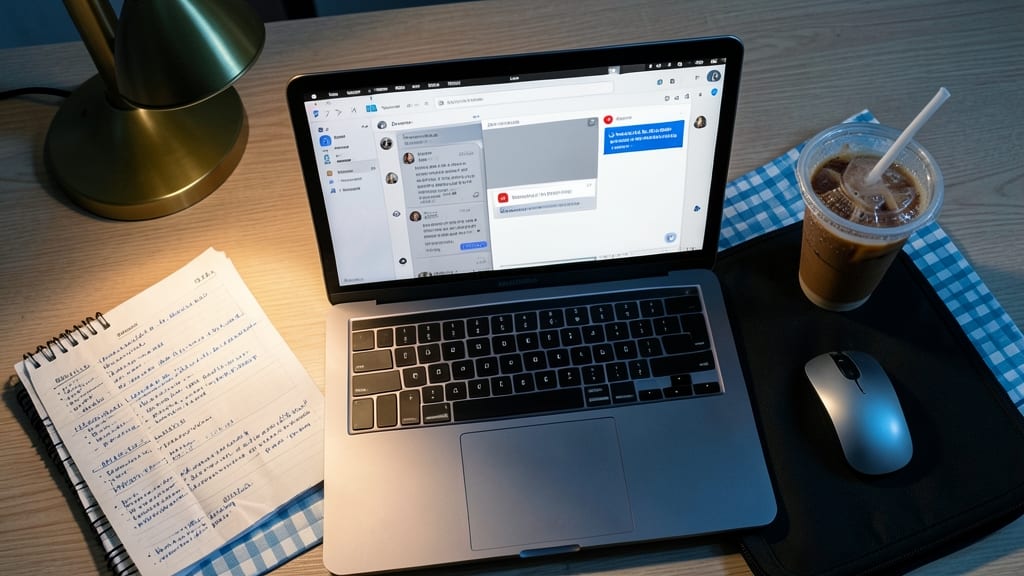
Drowning in notifications during finals week? Microsoft Teams lets you silence the noise while keeping what matters loud and clear. With custom notification rules, you can mute general chats during study sessions but still get alerts for @mentions, deadline reminders, or professor messages—so you stay focused without missing critical updates.
Set up priority alerts for specific channels (like your group project hub) while muting others entirely. The Do Not Disturb mode even lets you temporarily pause all notifications, perfect for deep-work sessions. Plus, you can schedule these rules to turn on/off automatically—like muting alerts between 8 PM and 8 AM for uninterrupted sleep.
This is your secret weapon for distraction-free productivity, especially for night owls or students juggling multiple deadlines. ⚡
Free for students with Education license
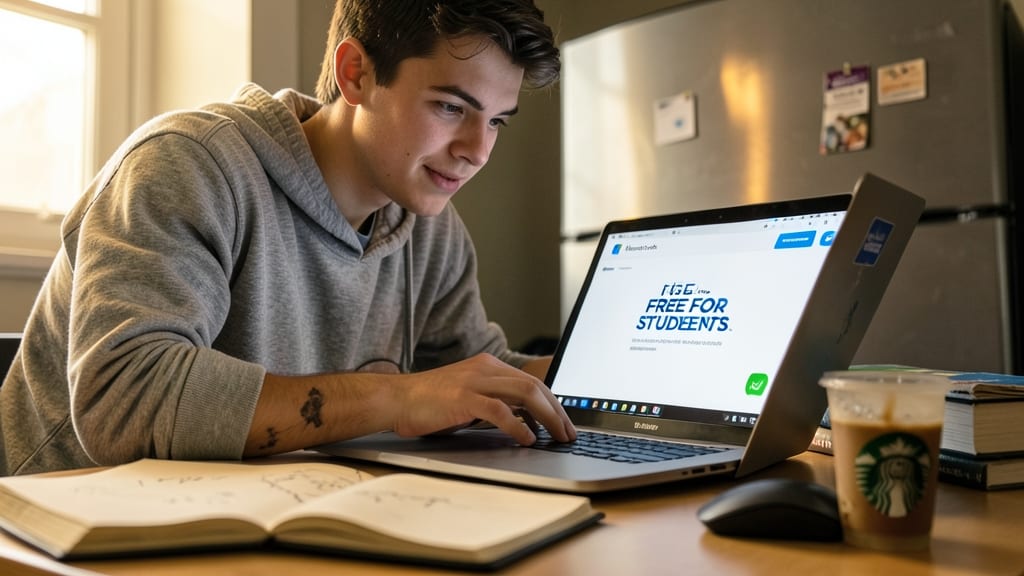
Tired of paying for productivity tools when you’re already drowning in tuition costs? Microsoft Teams is completely free for students through the Office 365 Education license—no hidden fees, no credit card required. This isn’t just a student discount; it’s full access to the same enterprise-grade collaboration tools used by professionals worldwide.
With your school email, you unlock 1TB of cloud storage, advanced security features, and 24/7 technical support—all without spending a dime. Whether you're managing group projects, hosting virtual study sessions, or sharing research, you get the same robust features as paid plans. The zero-cost model means you can focus on your studies, not your bank account.
This is the ultimate win for budget-conscious students, international learners, or anyone juggling multiple courses. No more compromising on tools—just pure, premium collaboration power at no charge. 💻