
Software
Microsoft Edge is a powerful browser packed with productivity features most users overlook. These seven expert tips will transform your browsing experience—boosting speed, fixing common issues, and unlocking hidden capabilities you didn’t know existed.
Enable Immersive Reader for Focused Reading

Struggling to focus while reading dense articles or research papers? Microsoft Edge’s Immersive Reader transforms your screen into a distraction-free zone with AI-powered simplicity. This tool strips away clutter, adjusts text spacing, and even reads aloud—perfect for students drowning in textbooks or professionals analyzing reports.
With customizable font sizes, line focus highlighting, and dark/light mode, Immersive Reader adapts to your needs. The text-to-speech feature (available in 80+ languages) lets you listen while following along, ideal for multitaskers. Best of all, it’s built into Edge—no extensions or extra apps required.
Students and researchers will love how it boosts retention, while professionals can use it to annotate documents hands-free. Enable it in seconds via the Immersive Reader icon in the toolbar. ✨
Use Collections to Organize Research Instantly
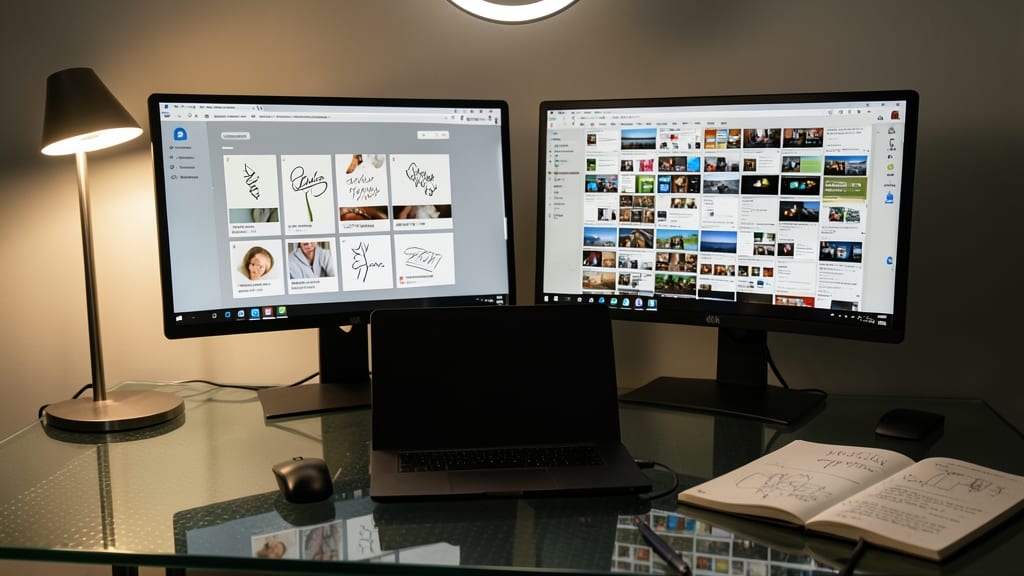
Drowning in tabs while researching? Microsoft Edge’s Collections feature turns your browser into a digital workspace where you can save web pages, images, and handwritten notes—all in one searchable hub. No more losing track of sources or struggling to recall where you found that perfect quote.
With zero setup required, simply click the Collections icon (or press Ctrl+Shift+S) to capture content directly from any webpage. Organize items into custom folders, add sticky notes, and even highlight text for later review. The built-in search function lets you find saved content instantly, even across multiple devices if you’re signed into your Microsoft account.
This is a game-changer for academic researchers, freelance writers, or anyone juggling multiple projects. Say goodbye to scattered bookmarks and hello to a clutter-free, all-in-one research tool—all within Edge. ✨
Customize Startup Pages with Multiple Profiles
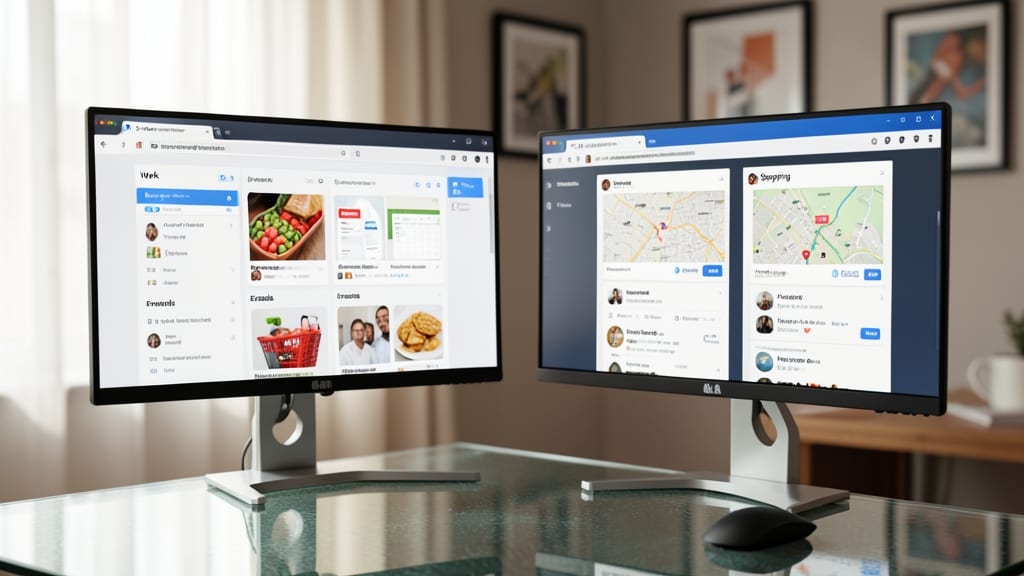
Tired of juggling work emails, personal errands, and online shopping in the same browser window? Microsoft Edge’s multiple profiles feature lets you create dedicated spaces for each—complete with unique startup pages, extensions, and settings—so your browsing stays organized and secure.
Set up a Work profile with pinned tabs for Outlook, Teams, and project tools, while your Personal profile loads your favorite news sites and social media. The Shopping profile can block ads and auto-fill forms for one-click purchases. Switching between them takes seconds, and all data stays isolated—no more accidentally closing your boss’s email while searching for a birthday gift. ⚡
Fix Lag with Hardware Acceleration Toggle
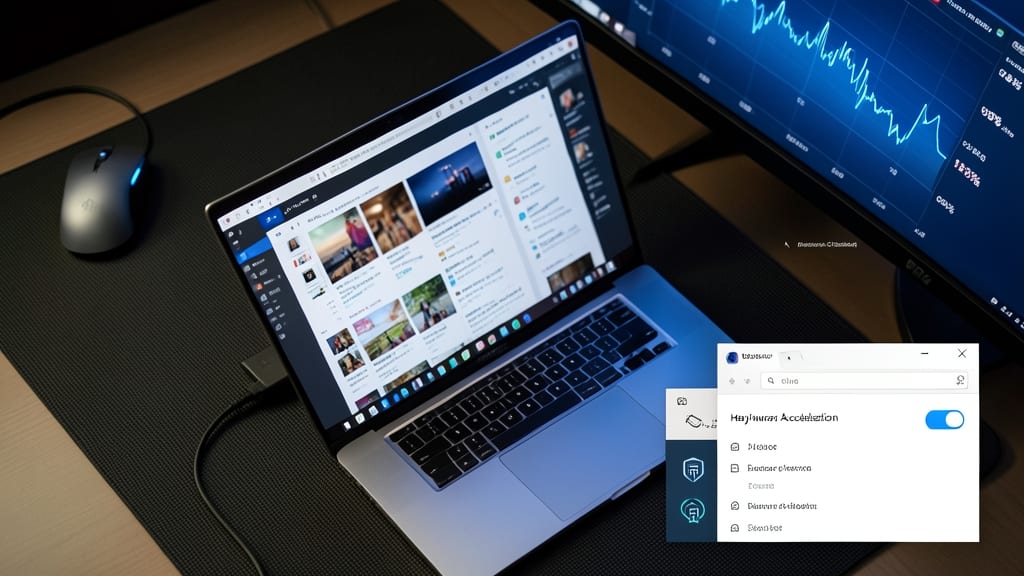
If your Microsoft Edge feels sluggish—especially on an older PC or with dozens of tabs open—this one setting might be the fix you’ve been missing. The Hardware Acceleration toggle offloads rendering tasks to your GPU, reducing CPU strain and preventing crashes during heavy usage.
To enable it, navigate to Settings > System > Performance and toggle Hardware Acceleration to On. This works best on systems with dedicated GPUs, but even integrated graphics see noticeable improvements in smoothness. For users running Windows 10/11, Microsoft recommends keeping this enabled unless you encounter driver conflicts.
This tweak is a lifesaver for multitaskers, video editors, or anyone juggling resource-heavy sites. Just flip the switch and watch lag disappear—no extensions or reinstalls required. ⚡
Automate Repetitive Tasks with Edge Workspaces
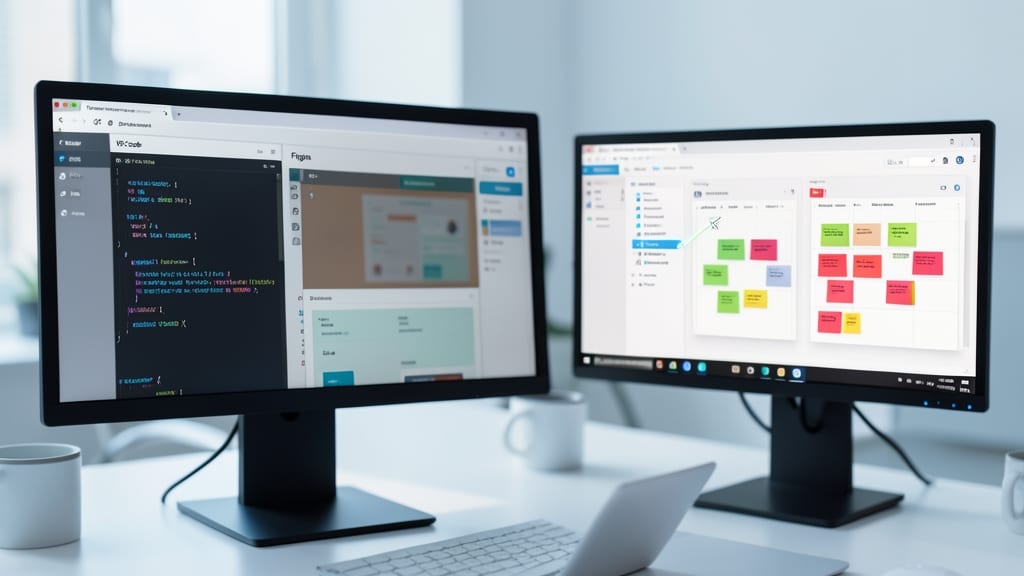
Tired of juggling dozens of tabs between coding IDEs, design tools, and project trackers? Edge Workspaces lets you group related apps into dedicated virtual desktops—no more accidental tab closures or lost workflows.
With one-click switching, you can isolate your VS Code, Figma, and Trello sessions into separate workspaces, each with its own pinned tabs and extensions. The collaborative features even let you share workspaces with teammates, syncing open tabs and notes in real time. Best of all, it’s built into Edge—no third-party tools required.
Perfect for developers, designers, and remote teams who thrive on multitasking without the chaos. 💻
Clear Cache Selectively to Free Up Space
Tired of Edge hogging storage for temporary files while your saved passwords and site data remain untouched? Microsoft Edge’s selective cache clearing lets you reclaim space without sacrificing convenience—no more losing critical settings or logins.
Navigate to Settings > Privacy, search, and services > Clear browsing data, then check only Cached images and files. This targets only temporary files (like downloaded images or scripts) while preserving autofill data, bookmarks, and extensions. For even more control, use Ctrl+Shift+Del to open the dialog directly and set a custom time range (e.g., "Last 7 days").
This is perfect for users juggling multiple devices or those who notice Edge’s storage ballooning after heavy browsing sessions. Try it next time your laptop complains about disk space—your browser will thank you. ✨
Enable Dark Mode for Reduced Eye Strain
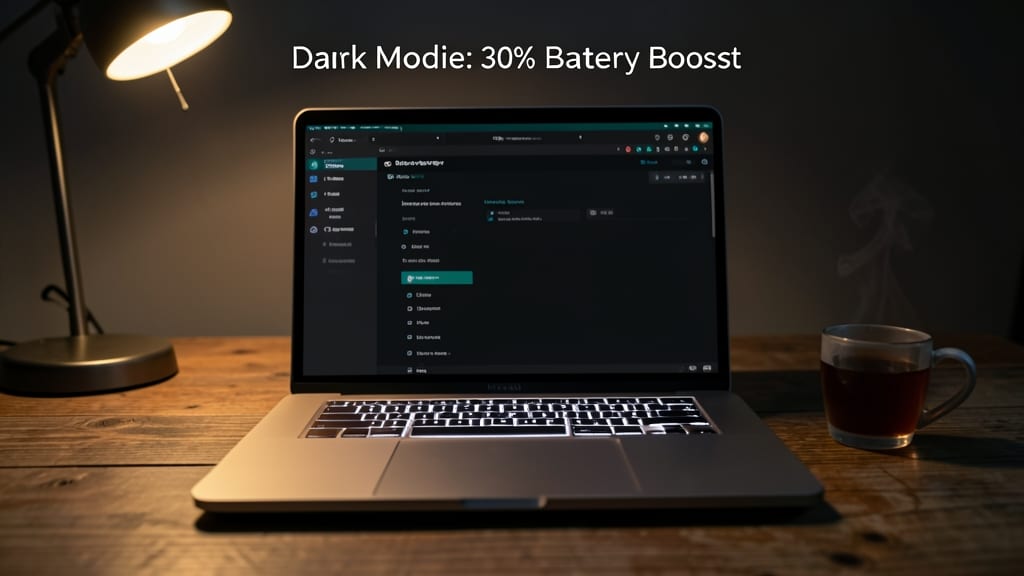
Late-night browsing or sensitive eyes? Microsoft Edge’s Dark Mode is your solution—reducing glare, cutting blue light exposure, and even extending laptop battery life by up to 30% in low-light conditions.
Enable it in Settings > Appearance (Windows) or Edge > Settings > Appearance (macOS), where you’ll find three presets: Dark, Light, or System Default. The mode automatically adjusts website colors (where supported) and syncs across devices via your Microsoft account. For extra comfort, pair it with Night Light (Windows) to further warm up screen tones.
This is ideal for night shift workers, gamers, or anyone squinting at bright screens—no extra apps or extensions needed. Your eyes (and battery) will thank you. ✨