
Coding

Struggling with messy text data in Excel? These 10 powerful text functions will transform raw data into clean, organized, and actionable information with ease. Perfect for analysts, marketers, and anyone working with text-heavy spreadsheets.
Concatenate Function for Combining Text Strings

Struggling to combine first names, last names, or addresses from separate columns into a single cell? The CONCATENATE function is your go-to tool for error-free text merging, and it pairs perfectly with the newer CONCAT function for even more flexibility.
Use =CONCATENATE(A1, " ", B1) to merge first and last names with a space in between, or =CONCAT(A1, "-", B1) for a hyphenated format. Both functions handle up to 255 arguments, making them ideal for combining addresses, product codes, or any multi-part text strings. The key difference? CONCAT automatically skips empty cells, while CONCATENATE requires you to handle them manually.
Perfect for HR teams building employee directories, marketers compiling customer lists, or anyone tidying up datasets with split information. Try it today and say goodbye to manual copy-pasting! ⚡
Text to Columns for Splitting Data

Staring at a single cell packed with comma-separated values and wondering how to split them into clean columns? The Text to Columns tool is your time-saving lifesaver for handling CSV imports, log files, or any delimited data—no manual copy-pasting required.
Launch it via Data > Text to Columns, then choose your delimiter (comma, tab, semicolon, or even custom characters). It instantly splits your text into separate columns while preserving data integrity. For large datasets, this function trims hours off your workflow—whether you're parsing server logs, cleaning up survey responses, or importing database exports.
Perfect for IT admins managing logs, data analysts importing datasets, or anyone wrestling with messy text imports. Once you try it, you’ll never go back to manual splitting! 💻
LEFT RIGHT and MID Functions

Need to pull out just the first three characters of a product code, or extract a serial number from a long string? The LEFT, RIGHT, and MID functions are your surgical tools for text extraction—no manual copying required.
Use =LEFT(A1, 2) to grab the first two characters from cell A1, or =RIGHT(A1, 4) to snag the last four digits of a serial number. For anything in between, =MID(A1, 5, 3) extracts characters starting at position 5 for 3 characters. These functions work perfectly with IDs, serial numbers, or partial data where precision matters.
Accountants extracting invoice prefixes, IT teams parsing device IDs, or developers cleaning up log files will find these functions indispensable. They’re the fastest way to isolate specific text segments without writing VBA. ✨
CLEAN and TRIM Functions

Tired of wasted hours scrubbing invisible characters from your datasets? The CLEAN and TRIM functions are your secret weapons for instantly polishing messy text—no manual edits required.
CLEAN removes non-printable characters (like those sneaky Unicode symbols) using ASCII codes, while TRIM eliminates extra spaces from both ends of text. Combine them for a one-two punch: =CLEAN(TRIM(A1)) turns jumbled data like " Product123 " into clean "Product123". Perfect for merging datasets or preparing reports where formatting matters.
These functions are lifesavers for anyone importing data from external sources or dealing with legacy files. Try them on your next dataset—you’ll wonder how you ever lived without them. ✨
SUBSTITUTE Function for Text Replacement

Tired of manually fixing typos or inconsistent formatting across hundreds of cells? The SUBSTITUTE function is your secret weapon for bulk text corrections and standardization.
With just one formula—=SUBSTITUTE(text, oldtext, newtext, [instance_num])—you can replace any character, word, or pattern across entire datasets. Need to swap "Inc." for "Company" in a business directory? Replace old product codes with new ones? Or fix common typos like "teh" for "the"? This function handles it all, even with case-sensitive replacements when needed.
Perfect for data analysts cleaning imports, marketers standardizing reports, or anyone battling inconsistent formats. ⚡
UPPER LOWER and PROPER Functions

Tired of inconsistent formatting ruining your reports? The UPPER, LOWER, and PROPER functions instantly standardize text case—no manual typing required.
Use =UPPER(A1) to convert all text to uppercase (perfect for acronyms or database keys), =LOWER(A1) for lowercase (ideal for search queries), or =PROPER(A1) to format text as title case (e.g., "john doe" → "John Doe"). These functions work across entire columns with a single drag, saving hours when cleaning up names, product titles, or headings.
Accountants standardizing invoice numbers, marketers formatting email lists, or anyone exporting data to systems with strict formatting rules will find these functions indispensable for polished, professional outputs. ✨
SEARCH and FIND Functions

When you need to verify whether specific text exists in a cell—but don’t care about case sensitivity—SEARCH and FIND are your go-to functions. While FIND demands an exact match (including uppercase/lowercase), SEARCH ignores case, making it ideal for flexible validation like checking email formats or product codes.
Use SEARCH("text", cell) to locate any variation (e.g., "Apple" or "apple"), while FIND("text", cell) only works for precise matches. Both return the position of the text, letting you build error-checking logic (e.g., =IF(ISNUMBER(SEARCH("@", A1)), "Valid", "Invalid")). Perfect for auditing datasets where typos or formatting inconsistencies are common.
Data analysts and quality assurance teams will love these for automating validation rules—no more manual eyeballing! ✨
REPT Function for Text Duplication

Tired of manually typing repetitive text like separators or placeholders? The REPT function is your secret weapon for instantly duplicating text patterns with precision. Whether you need a dotted line for reports or repeated symbols for data visualization, this function handles it all in seconds.
With REPT(text, number_times), you specify the text you want to repeat (like "=" or "•") and how many times to duplicate it. For example, =REPT("-", 20) creates a 20-character dashed line instantly. It’s perfect for generating custom dividers, visual markers, or even placeholder text in tables—no copy-pasting required.
Ideal for designers, analysts, or anyone who formats reports, this function saves time while keeping your spreadsheets polished. Try it next time you need consistent formatting across rows or columns! ✨
CHAR Function for Special Characters
Need to insert invisible formatting symbols or custom delimiters that Excel’s standard tools can’t handle? The CHAR function unlocks a hidden library of ASCII characters—from non-breaking spaces to tab symbols—right in your cells.
Simply input CHAR(ASCII_code), like CHAR(160) for a non-breaking space or CHAR(10) for line breaks. This function shines when you’re formatting reports, creating custom separators, or working with legacy data that relies on obscure symbols. It even handles non-printable characters like tabs (CHAR(9)) or page breaks (CHAR(12)).
Perfect for data analysts preparing reports with precise formatting, or developers building automated workflows that need invisible control characters. ⚡
TEXTJOIN Function for Advanced Merging
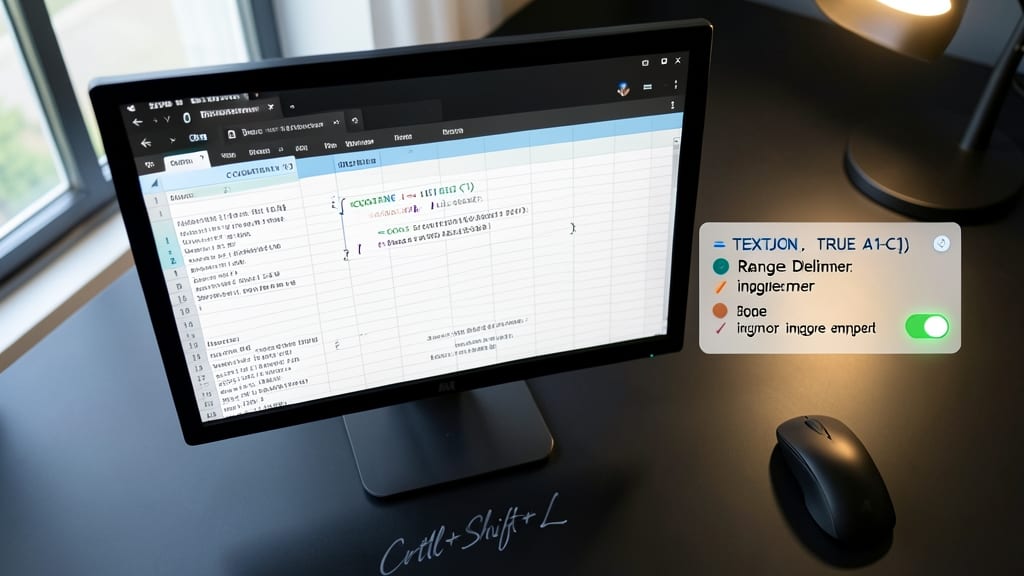
Tired of messy concatenations where empty cells break your formulas? The TEXTJOIN function is your new best friend for merging text with precision—it ignores blank cells by default and lets you specify custom delimiters like commas, semicolons, or even line breaks.
With three key parameters—range, delimiter, and ignore_empty—you can merge columns like product descriptions or customer notes without errors. For example, =TEXTJOIN(", ", TRUE, A2:C2) combines cells A2 through C2 with a comma separator, skipping any empty values. It even works in Excel 2019 and Office 365, making it the future-proof upgrade to older concatenation methods.
Perfect for data analysts consolidating survey responses or marketers compiling product lists, TEXTJOIN handles complex merges while keeping your formulas clean. ✨