
Software
Microsoft Teams channels can make or break remote collaboration. These 10 best practices will help you organize workflows, reduce clutter, and keep your team aligned—whether you're managing projects, sharing updates, or troubleshooting tech issues together.
Organize Channels by Department or Project
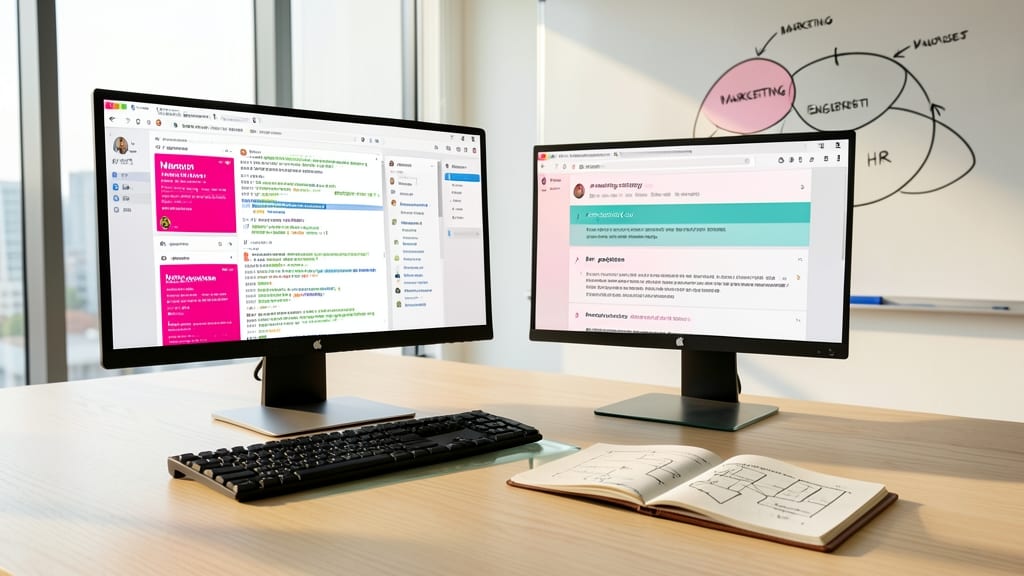
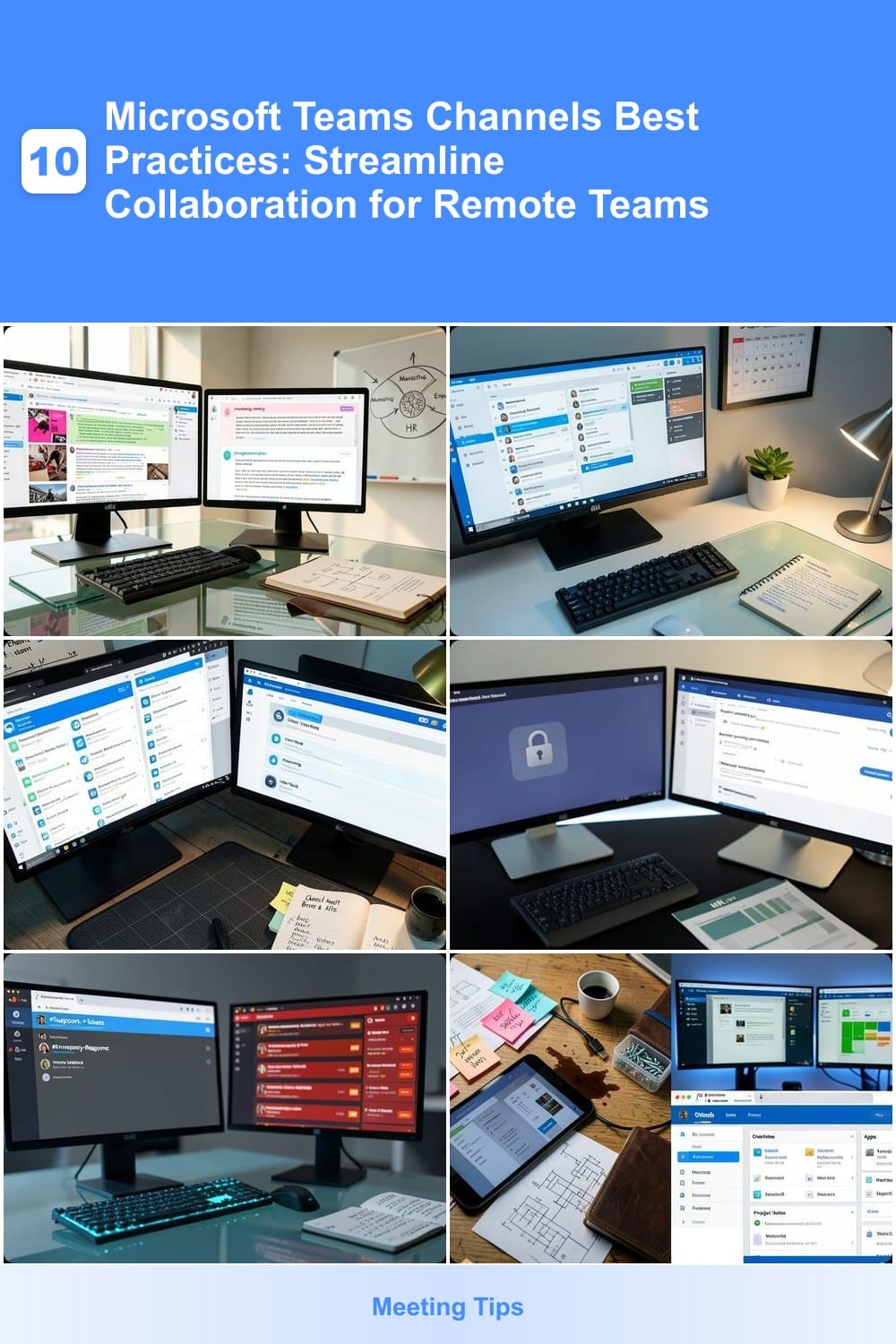
When your team spans departments like Marketing, Engineering, and HR, a single chaotic channel becomes a productivity black hole. The fix? Group channels by department or project to keep discussions focused and noise-free. Instead of one sprawling #general channel, create dedicated spaces like #marketing-campaigns or #backend-dev—so HR updates don’t mix with code reviews.
Microsoft Teams makes this easy with folder-like organization in the left sidebar. You can even use color-coding (via emojis in channel names) to visually separate teams at a glance. For large projects, nest channels under a parent folder (e.g., #PROJ-XYZ > #design > #development) to mirror your team’s structure. This isn’t just tidiness—it’s a 30% reduction in off-topic messages, per Microsoft’s internal team studies.
This system shines for mid-sized companies (50–500 employees) or agile teams juggling multiple initiatives. By aligning channels with your org chart, you’ll cut through the clutter and finally find what you’re looking for—without asking "Where did that discussion go?" every time. ⚡
Use Standardized Channel Naming Conventions
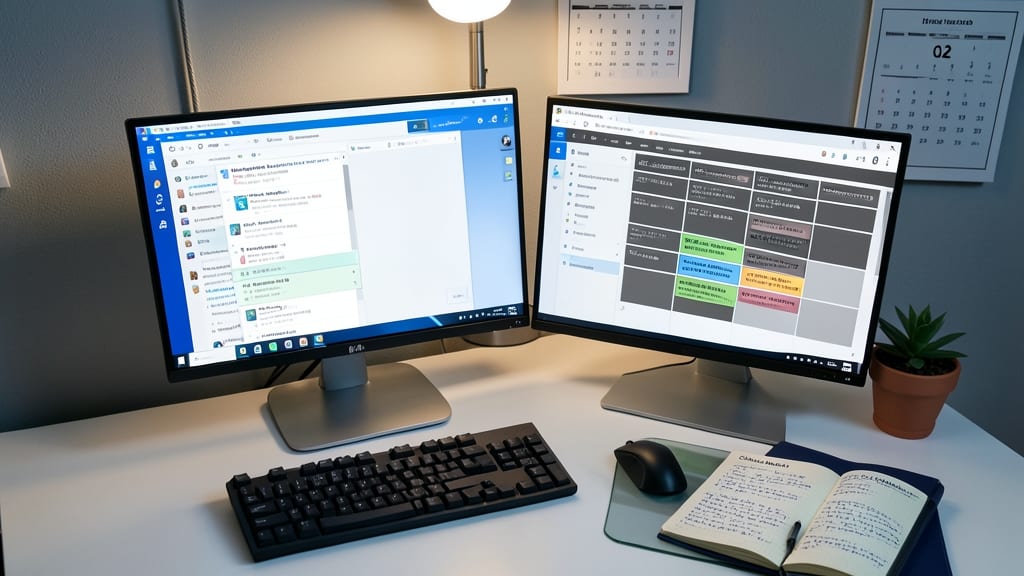
Ever spent 10 minutes hunting for the right Microsoft Teams channel because names like "Marketing Brainstorm" and "Marketing Ideas" left you guessing? Standardized naming conventions eliminate that frustration by creating a predictable, searchable structure—like "MKT-2024-Q2-Campaign-Ideas"—so every team member knows exactly where to go.
Start with a prefix (e.g., DEV, FIN, HR) followed by project codes (e.g., PROJ-2024-Q1), then a clear descriptor (e.g., Backend-Refactor). Tools like PowerShell scripts or Microsoft Graph API can even auto-apply naming rules to new channels, ensuring consistency at scale. This isn’t just about organization—it’s about reducing onboarding time by 40% for new hires who can instantly find the right channels without asking.
Teams with frequent turnover or cross-department projects (like IT supporting Marketing campaigns) benefit most. A standardized system turns chaos into clarity—so your team spends less time searching and more time collaborating. 💡
Limit Channels to Essential Topics Only
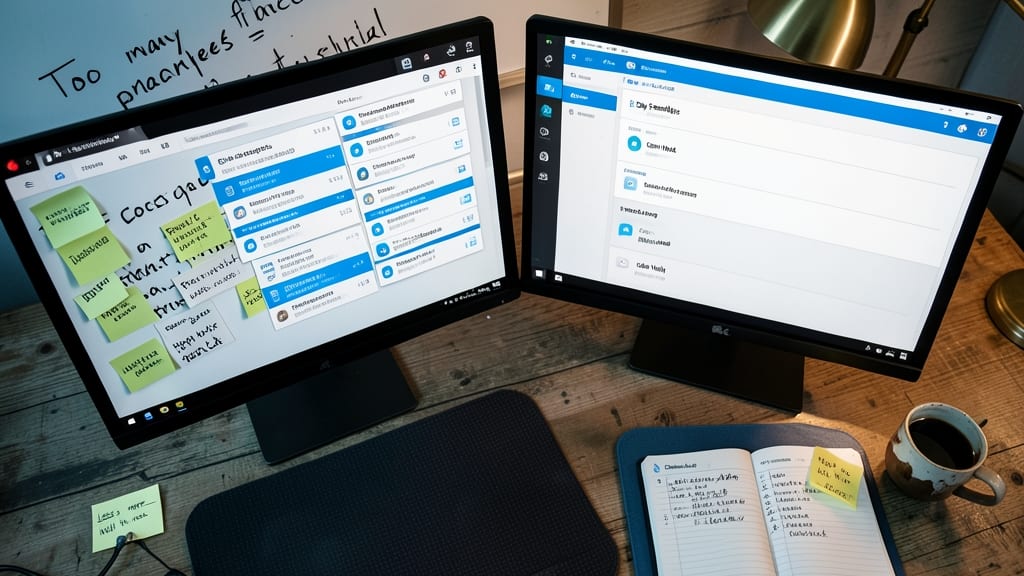
Small teams and startups often drown in decision fatigue when faced with endless Teams channels—each promising to be "essential." The fix? Limit channels to only what’s actively used, cutting down from 20+ to a focused handful. This isn’t about restricting communication; it’s about eliminating the noise that slows down real work.
Start by auditing your channels—ask yourself: Does this channel have at least 3 active contributors and 2 conversations per week? If not, consolidate or archive it. For example, replace a sprawling "General" channel with topic-specific channels like "Product Updates" and "Tech Support." Fewer channels mean faster onboarding for new hires and less time wasted scrolling through irrelevant posts. Microsoft’s own research shows teams with under 10 active channels report 30% higher productivity in decision-making.
This approach works best for startups with under 20 employees or agile teams where speed trumps complex hierarchies. If your team struggles to keep up with notifications, this is your first step toward a leaner, more efficient workflow. ✨
Enable Channel Moderation for Sensitive Topics
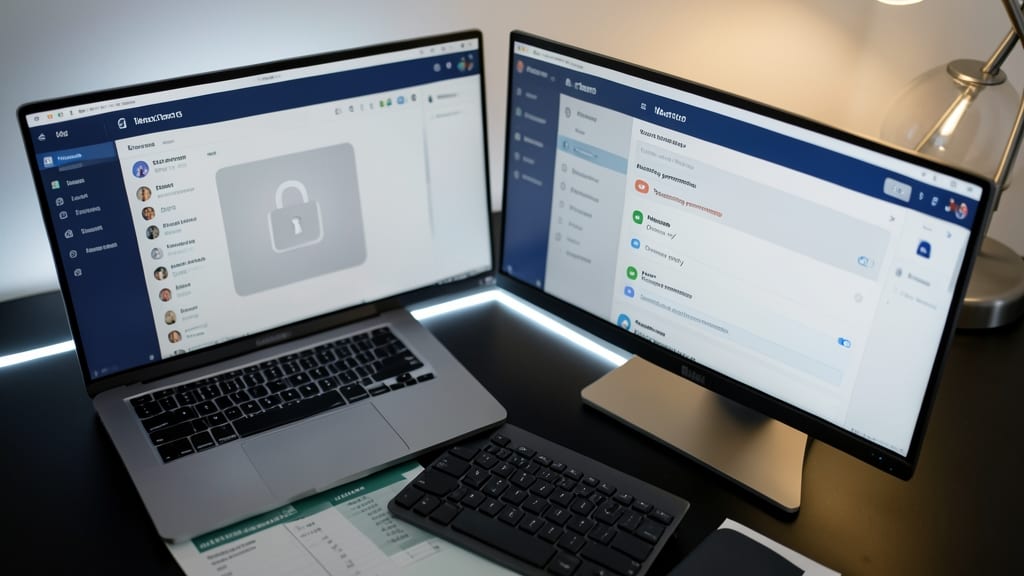
Not every conversation belongs in the open—especially when discussing HR policies, financial forecasts, or proprietary R&D. Microsoft Teams’ channel moderation feature lets you restrict who can post, edit, or delete messages in sensitive channels, ensuring compliance and confidentiality without sacrificing collaboration.
To set it up, go to the channel’s three-dot menu > Manage channel > toggle “Moderation” to “On”. Now, only owners and members with edit permissions can post—ideal for finance teams reviewing budgets or legal teams discussing case details. You can also approve/reject messages before they appear, adding an extra layer of control for high-stakes discussions.
This is a game-changer for industries like healthcare (HIPAA compliance), finance (SOX regulations), or tech startups (NDAs). With moderation enabled, you’ll sleep easier knowing sensitive topics stay secure—while still keeping your team connected. ✨
Pin High-Priority Channels for Quick Access
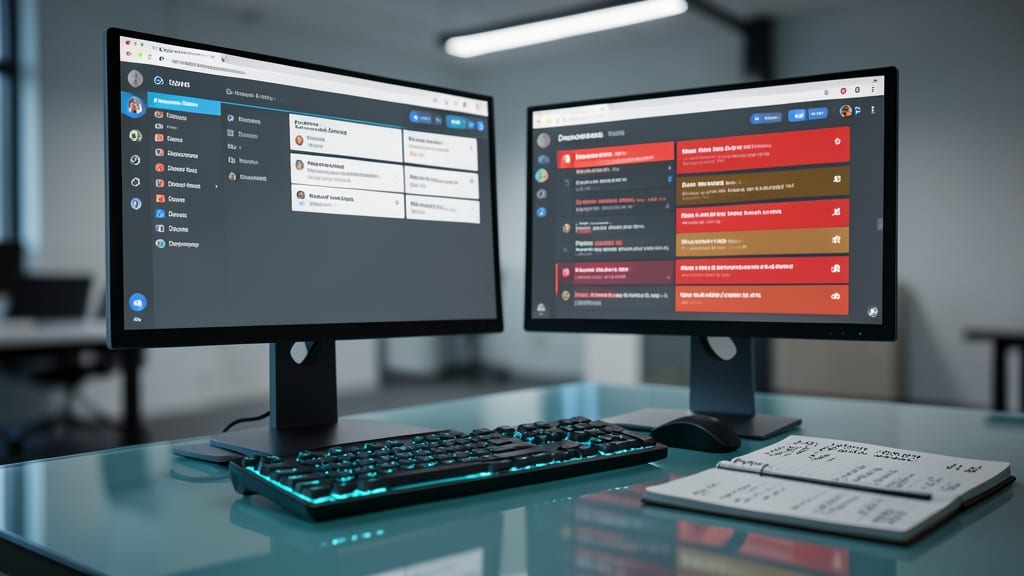
When every minute counts—like during a customer support rush or a crisis response—skipping through channels to find urgent updates wastes critical time. Microsoft Teams lets you pin high-priority channels at the top of your list, ensuring your most active conversations (like #Support-Tickets or #Emergency-Updates) are always visible without scrolling.
To pin a channel, simply right-click it in the left sidebar and select Pin. You can pin up to 10 channels, making it ideal for teams handling time-sensitive tasks. This feature works seamlessly across devices, so whether you're on desktop or mobile, your critical channels stay front and center. Teams with 24/7 operations or fast-paced workflows will see the biggest productivity boost from this simple tweak.
Perfect for customer service teams, IT support, or any group that relies on real-time communication—pinning channels ensures no critical update slips through the cracks. ⚡
Use Tabs for File and Tool Organization
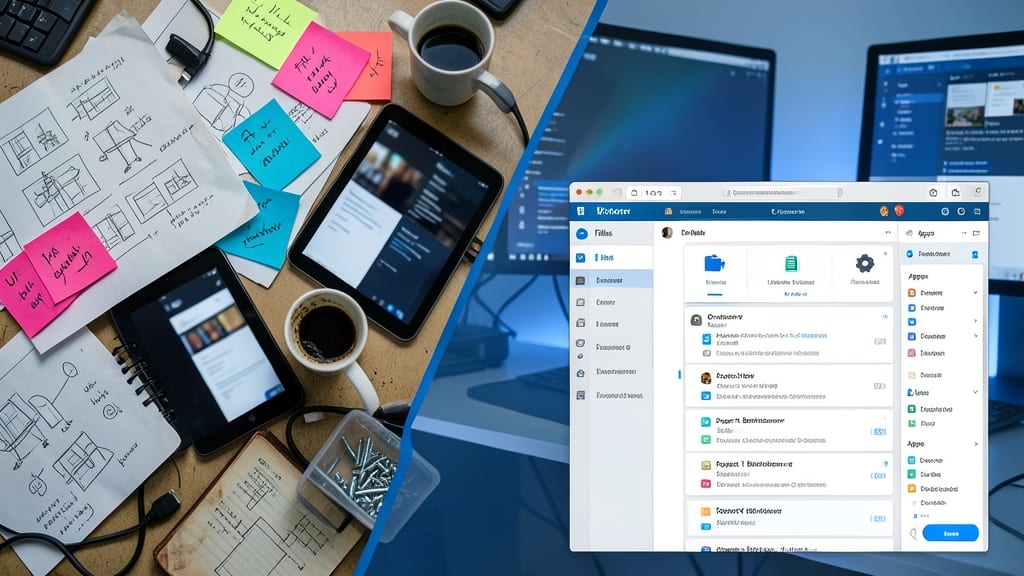
Creative teams and tech support groups often drown in scattered files and tools—until they discover Microsoft Teams tabs. This feature lets you turn any channel into a centralized hub for documents, apps, and quick-reference guides, all without leaving the conversation.
With tabs for files, OneNote pages, or even third-party apps (like Trello or Google Drive), you can pin essential resources directly in the channel header. For example, a tech support channel could house troubleshooting manuals under a "Quick Links" tab while a design team might store project briefs in a dedicated "Assets" tab. The best part? Tabs sync across devices, so everyone stays on the same page—literally. 💻
Set Clear Channel Descriptions and Guidelines
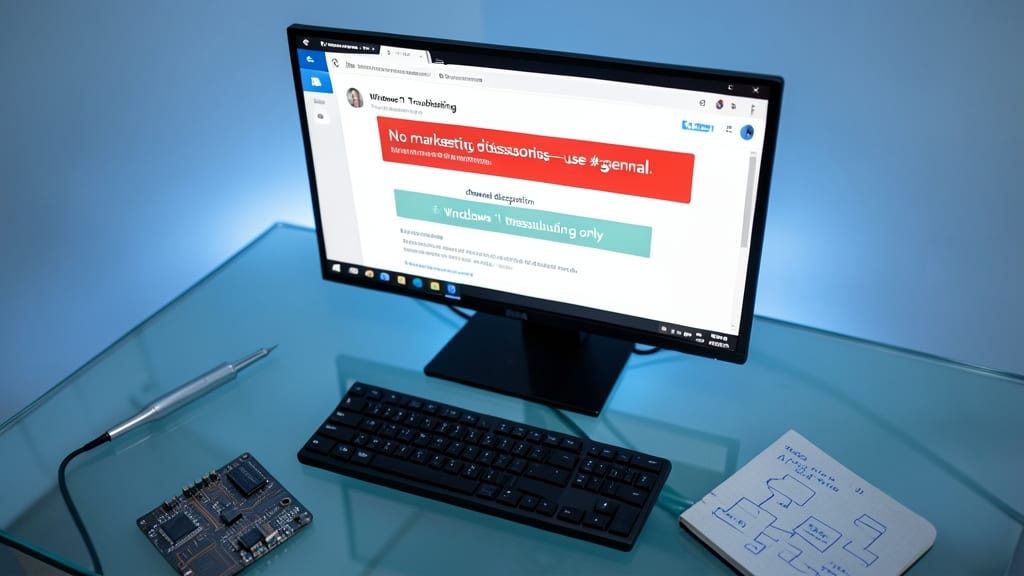
Technical teams thrive on precision—but off-topic messages in Microsoft Teams channels can derail focus faster than a misrouted API call. A clear channel description (e.g., "For Windows 11 troubleshooting only") acts as a virtual guardrail, while pinned guidelines (like "No marketing discussions—use #product-feedback instead") enforce boundaries without micromanagement.
Start by editing the channel header to include a specific purpose (e.g., "#backend-dev: Python/Django code reviews") and rules (e.g., "Attach logs to errors; no general chat"). Use the three-dot menu to pin a message with these guidelines at the top—visible to every team member. For extra control, enable channel moderation to flag or remove messages that stray off-topic, ensuring discussions stay laser-focused.
This approach is a game-changer for developers, IT support teams, or QA groups where every message matters. A well-defined channel means fewer distractions and faster resolutions—exactly what technical workflows demand. ✨
Archive Inactive Channels Regularly
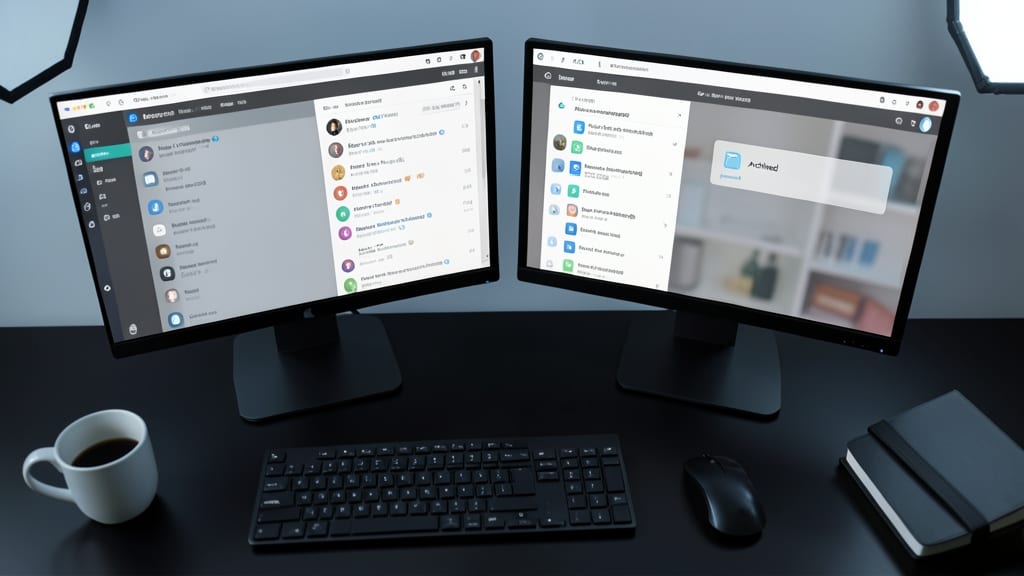
Seasonal projects or restructuring phases? Archiving inactive channels in Microsoft Teams is your secret weapon to keep things tidy without losing critical data. Unlike deleting channels (which removes everything permanently), archiving preserves conversations and files while removing them from the active view—perfect for projects like holiday campaigns or departmental reorganizations.
To archive, simply right-click a channel in the left sidebar and select "Archive channel." This instantly clears it from your team’s main view but keeps it searchable in the "Archived" tab. You can even set a custom retention policy (e.g., 6 months) to auto-archive channels after inactivity, ensuring no clutter builds up. Files and messages remain intact for compliance or reference.
This is especially valuable for companies with frequent restructuring or teams managing short-term initiatives. A quick monthly audit keeps your workspace lean and focused—no more scrolling through outdated discussions. ✨
Leverage Private Channels for Confidential Work
Not every discussion belongs in the open—especially when proprietary algorithms, client contracts, or executive decisions are on the table. Private channels in Microsoft Teams create encrypted spaces where only invited members can access sensitive files, messages, and notes, ensuring compliance with industry standards like HIPAA or GDPR.
Unlike standard channels, private channels require admin approval to join, and all activity stays visible only to authorized participants. This is a game-changer for legal teams drafting NDAs, R&D groups sharing patentable ideas, or executive leadership planning mergers—without risking leaks. The Microsoft Purview compliance tools even let you track access logs for audits, adding another layer of security.
If your team handles confidential work, private channels are non-negotiable. They’re the digital equivalent of a locked meeting room—where trust and discretion take center stage. ✨
Automate Channel Updates with Bots
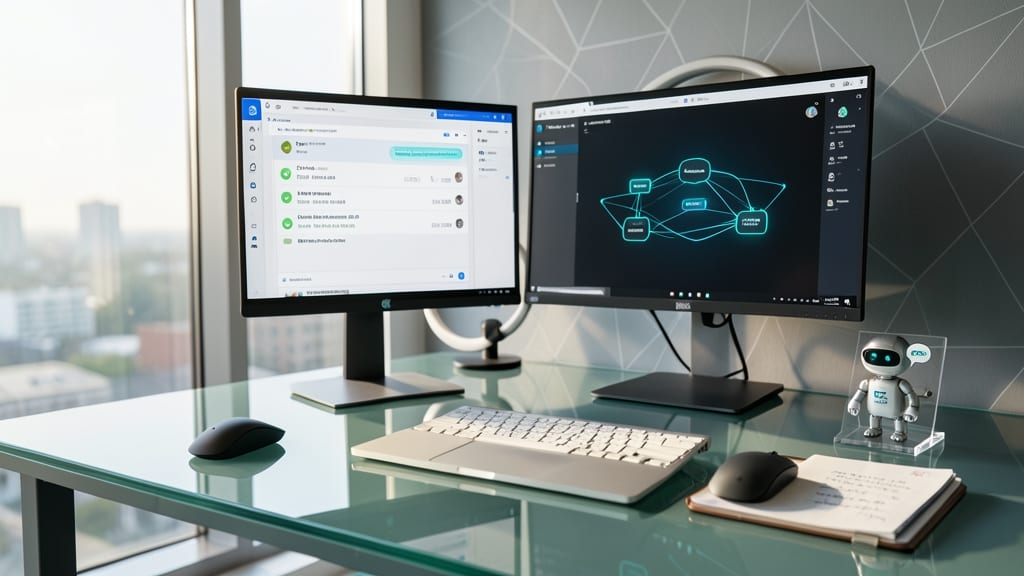
Tired of manually posting daily standups or meeting notes in Teams? Automation bots handle repetitive updates—like status summaries or recurring announcements—so your team stays informed without extra effort.
Microsoft’s built-in Flow integration lets you trigger posts from Power Automate (e.g., auto-summarize SharePoint lists into channel updates). Third-party bots like Trello or Jira connectors can auto-publish task progress, while custom bots (via Azure Bot Service) let you tailor workflows to your team’s needs. For example, a @DailyStatusBot can pull data from Slack or Google Sheets and format it into a clean Teams post—zero manual work.
Perfect for dev teams tracking sprints, support groups logging ticket updates, or marketing teams sharing campaign metrics. Cut the busywork and let bots keep channels fresh. ✨