
Tip & Trick
Microsoft OneNote 2013 remains a powerhouse for note-taking and organization, but many users overlook its most powerful features. These seven hidden tips and tricks will transform how you capture, organize, and retrieve information—boosting your productivity without switching tools.
Quick Capture with OneNote Clipper Browser Extension

Tired of losing valuable research or important web content to browser tabs and forgotten bookmarks? The OneNote Clipper browser extension turns your browser into a direct pipeline to OneNote, letting you save full web pages, screenshots, or selected text with a single click—no copy-pasting required.
Install the extension in Chrome, Firefox, or Edge, then use the toolbar button to capture entire articles, highlight key sections, or even save screenshots straight into your OneNote notebook. The extension preserves formatting, images, and links, so your saved content looks just like the original. Best of all, it works offline and syncs seamlessly with your OneNote account.
Researchers, journalists, and professionals who curate digital content will love this zero-config workflow. Say goodbye to lost tabs and hello to organized, searchable knowledge—all with a click. ⚡
Handwriting to Text Conversion for Faster Note-Taking
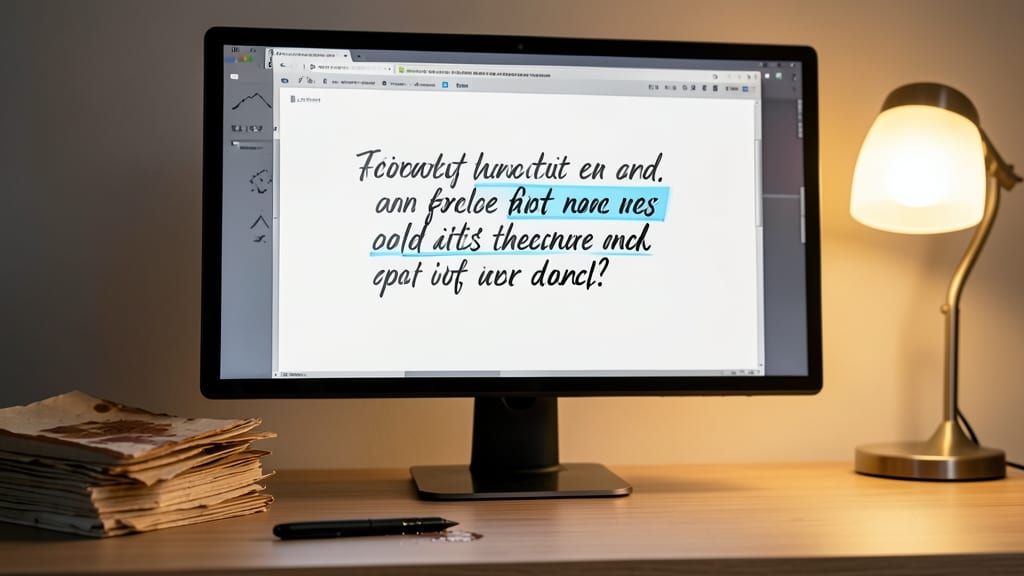
Still clinging to pen and paper for notes but tired of digging through stacks to find what you need later? OneNote 2013’s handwriting recognition turns your scribbles into editable digital text in seconds—no typing required. Just jot down ideas with your stylus or mouse, then select the text and choose "Convert Handwriting to Text" from the ribbon menu.
The feature supports multiple languages and even handles math equations, so your lecture notes or meeting minutes become instantly searchable. No more scanning or retyping—just highlight the converted text to copy, edit, or share. It works seamlessly with OneNote’s tagging system and search tools, so your handwritten insights stay organized and accessible.
This trick is a game-changer for students reviewing lecture notes, professionals capturing meeting details, or anyone who prefers the speed of pen input but needs digital flexibility. Your notes transform from static paper to actionable data—all within OneNote. ✨
Tagging System for Smart Information Organization

Drowning in a sea of notes but struggling to find what you need? OneNote 2013’s built-in tagging system turns disorganized chaos into a visual, searchable knowledge base—no third-party tools required.
Assign color-coded tags (like red for urgent, blue for work, or green for personal) to instantly categorize notes by priority, project, or topic. The system even lets you nest tags for deeper organization, and all tags sync across devices. Plus, OneNote’s search function indexes tagged content, so you can quickly retrieve notes without scrolling through pages.
Perfect for project managers juggling deadlines, students tracking research, or anyone tired of digging through digital clutter. Your notes will finally work for you—not against you. ✨
Audio and Video Recording Directly in Notes
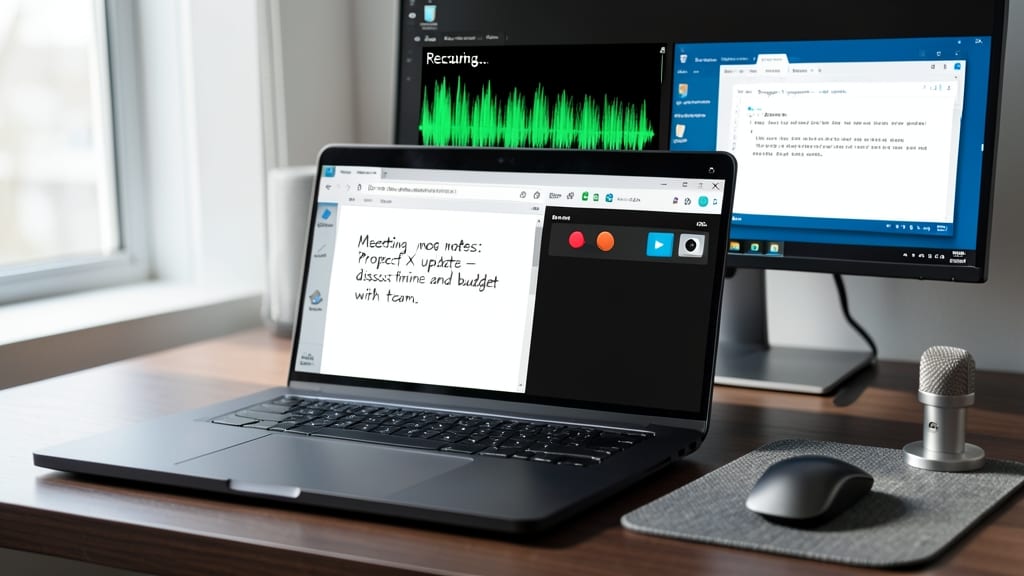
Tired of losing context when your typed notes can’t capture the full picture? OneNote 2013’s built-in audio and video recording tools let you embed voice memos or screen recordings directly into your notes—no extra apps needed.
Simply press Win + N to launch the recording toolbar, then choose between microphone audio (perfect for lectures or interviews) or screen capture (ideal for tutorials or brainstorming sessions). The recordings appear as playable widgets within your notes, complete with timestamps and waveform previews for easy navigation.
This feature is a game-changer for educators, developers, or anyone documenting complex processes—like capturing a coding walkthrough or preserving a client’s verbal feedback. No more juggling separate files! ✨
Linked Notes Across Multiple Devices

Tired of juggling notes across devices only to find them out of sync? OneNote 2013’s automatic cross-device linking ensures your notes stay in perfect harmony—whether you’re typing on a Windows desktop, sketching on a Surface Pro, or jotting down quick ideas on your Windows Phone. The magic happens via Microsoft OneDrive integration, where changes sync instantly across all linked devices.
No manual exporting or emailing required—just open OneNote on any device, and your entire notebook library appears ready to use. The real-time sync works even offline, with updates applying the moment you reconnect. Need to reference yesterday’s meeting notes while on the go? They’re already waiting for you, exactly as you left them. For professionals who switch between devices daily, this feature alone cuts down on lost time and missed details.
Perfect for remote workers, students, or anyone who needs seamless access to their notes—whether you’re drafting a report at your desk or reviewing project details during a commute. Never let device limitations hold you back again. ✨
Math and Equation Tools for Problem Solving

Stuck on a complex equation during a study session or engineering project? OneNote 2013’s built-in math tools turn your notebook into a digital scratchpad for solving problems—no extra software needed. Just write or type your equations, and OneNote instantly recognizes variables, fractions, and symbols.
The equation solver handles everything from basic algebra to calculus, displaying step-by-step solutions in clean, formatted text. You can even convert handwritten math into editable digital equations, making it ideal for students or professionals who sketch ideas on paper first. The tool also supports LaTeX-style formatting, so your work looks polished and professional.
Perfect for students cramming for exams, engineers drafting calculations, or data analysts verifying formulas—this feature keeps all your problem-solving in one place without context-switching. ✨
Password-Protected Sections for Sensitive Data
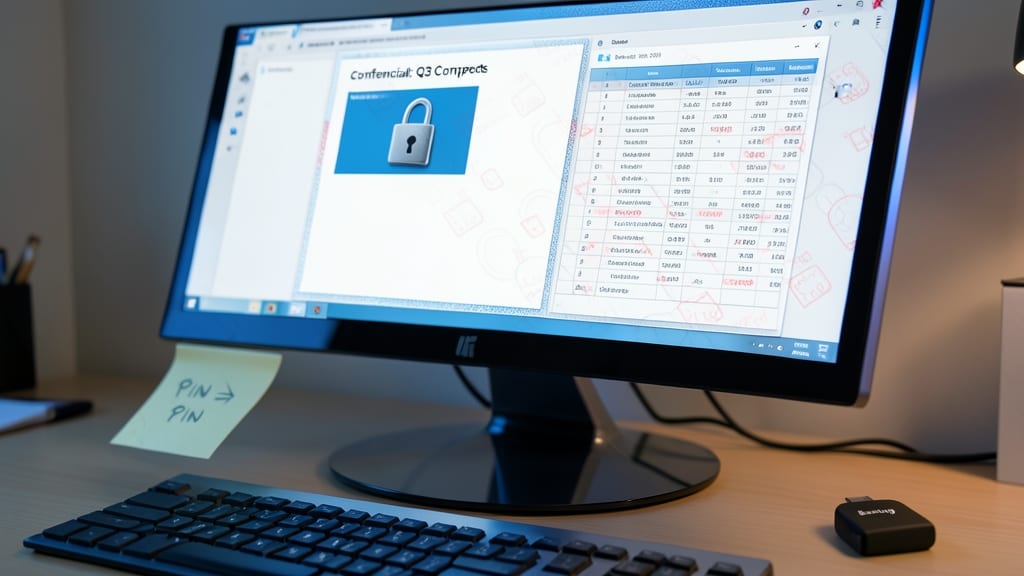
What if your most sensitive notes—contracts, financial records, or private meeting agendas—could stay secure inside OneNote without needing a third-party app? The password-protected section feature lets you encrypt entire notebook pages with a custom PIN, ensuring only authorized eyes access critical data.
To set it up, right-click any section in your notebook, select Password Protect, and choose a strong PIN. The section will lock instantly, displaying a padlock icon—visible only to you. This works seamlessly with OneNote 2013’s offline mode, so your data stays secure even without internet access. No cloud sync required.
Perfect for freelancers storing client contracts, small business owners tracking sensitive financials, or anyone who needs a zero-config encryption solution. Your confidential notes stay put—no extra software, no external risks. ✨