
Software
Microsoft is rolling out new Teams features that can transform how you stay organized. These hidden menu tricks—including the upcoming reminders system—will help you automate tasks, set deadlines, and streamline workflows without leaving your Teams interface.
How to Enable Teams Reminders in Beta
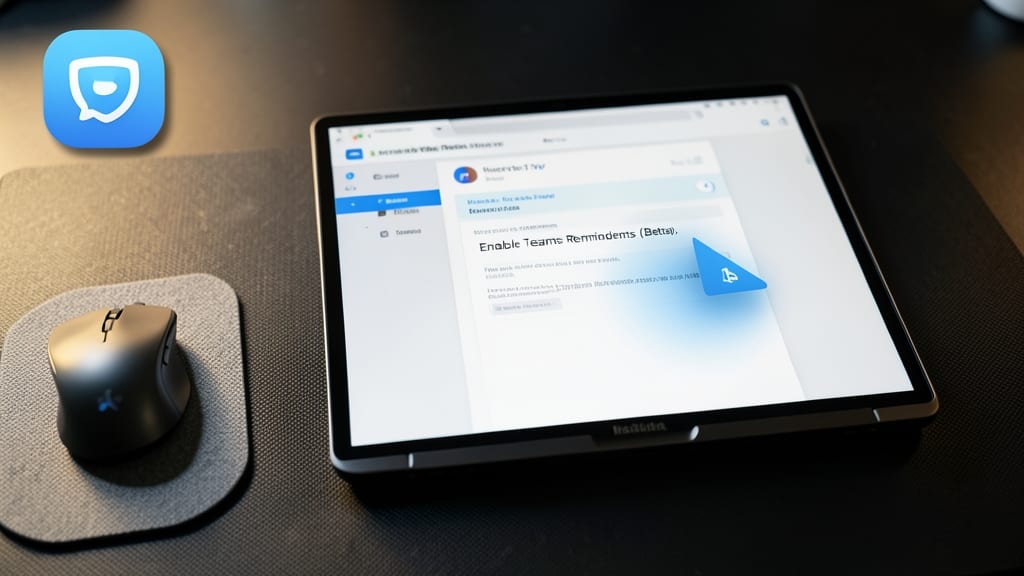
Want to test Microsoft’s new Teams Reminders before they hit the mainstream? You can enable the beta version right now with just two simple steps—no waiting for the official rollout. This early access lets power users refine the feature, report bugs, and shape how reminders evolve in Teams.
First, open Teams on desktop (Windows or macOS) and click your profile picture in the top-right corner. From the dropdown, select Settings > General. Under the Beta features section, toggle on \"Reminders\". Restart Teams, and you’ll find the new Reminders tab in your left sidebar—ready for testing. The feature currently supports one-time and recurring tasks, with plans to expand to advanced triggers later.
Perfect for productivity enthusiasts, beta testers, or teams piloting new workflows, this early access gives you a head start on organizing tasks without leaving Teams. Give it a try and help shape the future of reminders! ⚡
Setting Up Recurring Task Reminders Automatically
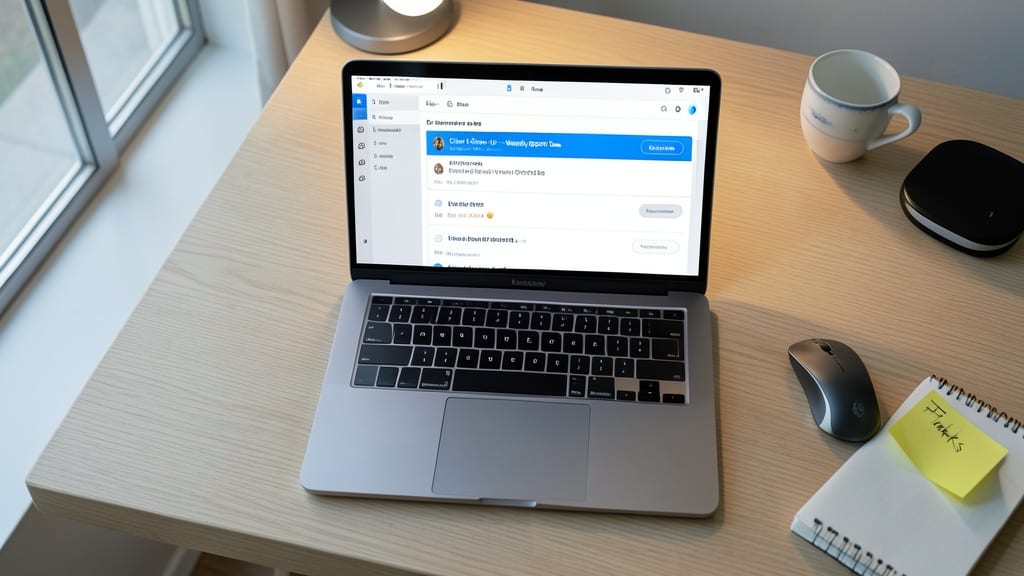
Struggling to remember repetitive tasks like client follow-ups or weekly reports? Microsoft Teams’ new recurring reminders feature automates the process with just a few clicks—no third-party apps required. The setup is intuitive: simply select the "Recurring" toggle when creating a reminder, then choose from daily, weekly, or monthly intervals. You can even set end dates to avoid endless notifications.
The system handles the heavy lifting by syncing reminders across your Teams calendar and Outlook, ensuring no task slips through the cracks. Add custom labels (e.g., "Project X Deadline") and assign reminders to team members for seamless collaboration. With support for desktop and mobile, you’ll never miss a beat—whether you’re in a meeting or on the go.
Ideal for project managers, freelancers, or anyone juggling multiple deadlines, this feature turns forgettable tasks into automated workflows. No more sticky notes or scattered apps—just set-it-and-forget-it productivity. ⚡
Customizing Reminder Notifications for Focus
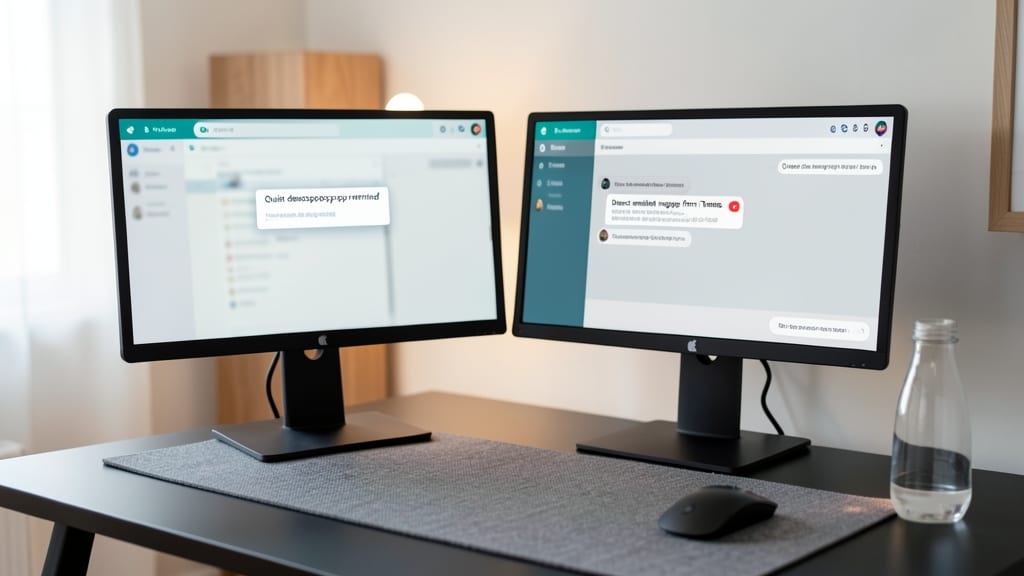
Remote work thrives on focus—but constant notifications can shatter it. Microsoft’s new Teams reminder customization lets you dial down distractions by choosing how and when alerts appear, whether it’s a quiet desktop pop-up, a direct email nudge, or a Teams chat message for urgent tasks.
Dive into the notification settings menu to mute non-critical reminders during deep work hours, or prioritize desktop alerts for time-sensitive deadlines. You can even toggle focus mode to silence everything except high-priority tasks, keeping your workflow uninterrupted while staying on top of what truly matters.
Perfect for freelancers, developers, or managers juggling multiple screens—this feature turns Teams into a distraction-free productivity hub. ✨
Linking Reminders to Teams Channels for Teams
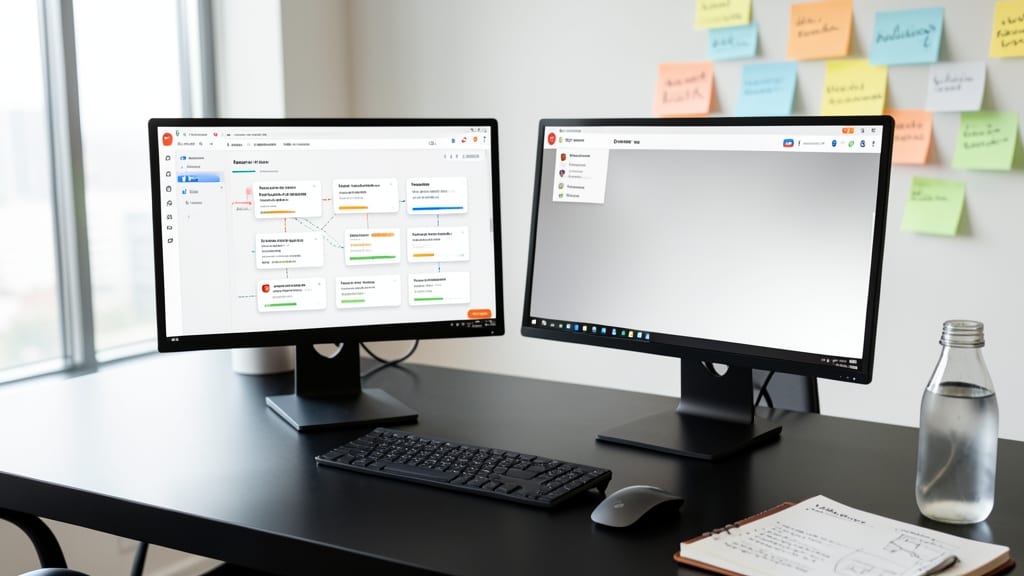
Managing cross-functional projects just got easier with Teams Channel Reminders—a game-changer for managers juggling multiple teams. Instead of scattering tasks across emails or sticky notes, you can now pin deadlines, action items, and milestones directly to specific channels, ensuring everyone stays on the same page.
This feature lets you create channel-specific reminders that appear in the channel feed, so no one misses critical updates. You can assign tasks to team members, set deadlines, and even add context like files or links—all while keeping discussions in one place. The integration with Teams’ existing workflows means no extra logins or app-switching, just seamless collaboration.
Perfect for project managers, Scrum masters, or team leads, this tool eliminates the guesswork of who’s responsible for what. With reminders visible to the entire team, accountability improves—and so does productivity. ✨
Using Reminders to Track Action Items in Meetings
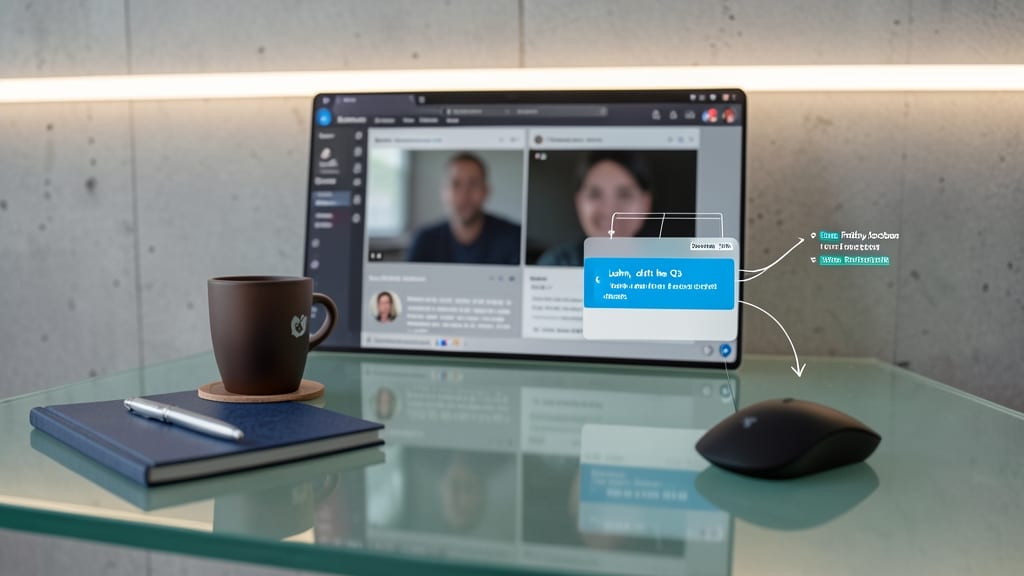
Tired of post-meeting chaos where action items vanish into the void? Microsoft Teams’ new Reminders for Meetings feature turns notes into automated, owner-assigned tasks—complete with deadlines—right inside the meeting transcript.
During a call, simply highlight text like "John, draft the Q3 report by Friday" and select "Create Reminder" from the context menu. The system auto-assigns it to John, sets a default deadline (or lets you customize it), and pins it to the meeting chat. No more chasing down follow-ups—just real-time accountability with a single click.
This is a game-changer for project managers, scrum teams, or anyone drowning in meeting notes. Say goodbye to forgotten tasks and hello to zero-config follow-through. ✨
Integrating Reminders with Outlook Calendar
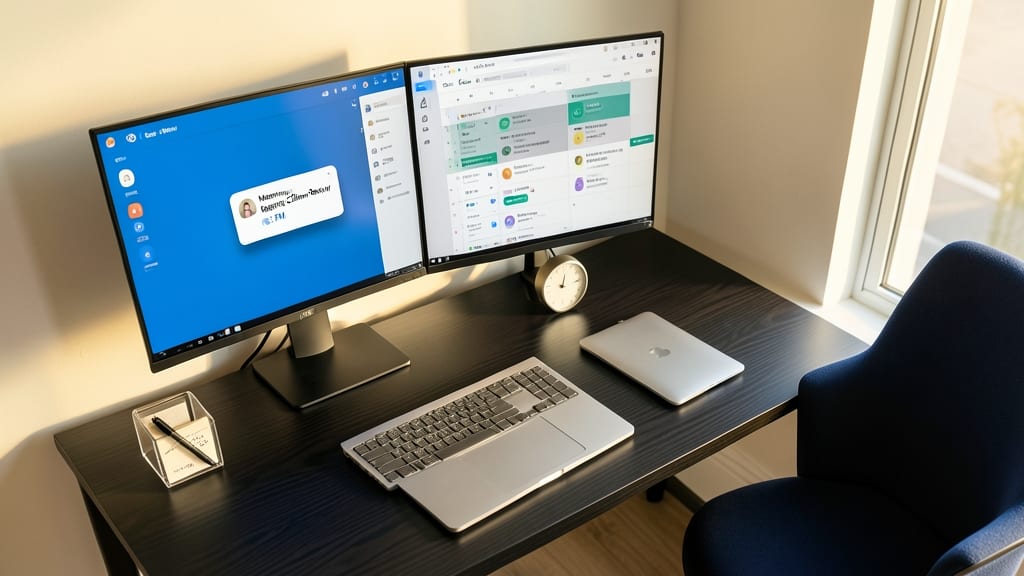
Stop juggling separate apps for work and personal tasks—Teams reminders now sync directly with your Outlook Calendar, eliminating the risk of double-bookings or missed deadlines. This seamless integration ensures your professional commitments and personal events stay in perfect harmony, all within the Microsoft ecosystem.
The sync works in real-time, so when you schedule a reminder in Teams, it automatically appears in Outlook (and vice versa) with the same details—time, date, and priority. No more manual copying or cross-checking; the system handles it all. Plus, you can toggle visibility for work vs. personal events, keeping your calendar clutter-free while staying organized.
This feature is a game-changer for freelancers, executives, and remote workers balancing multiple calendars. With zero extra setup, you’ll never miss a meeting or personal commitment again. ✨
Advanced Reminder Triggers for Proactive Workflows
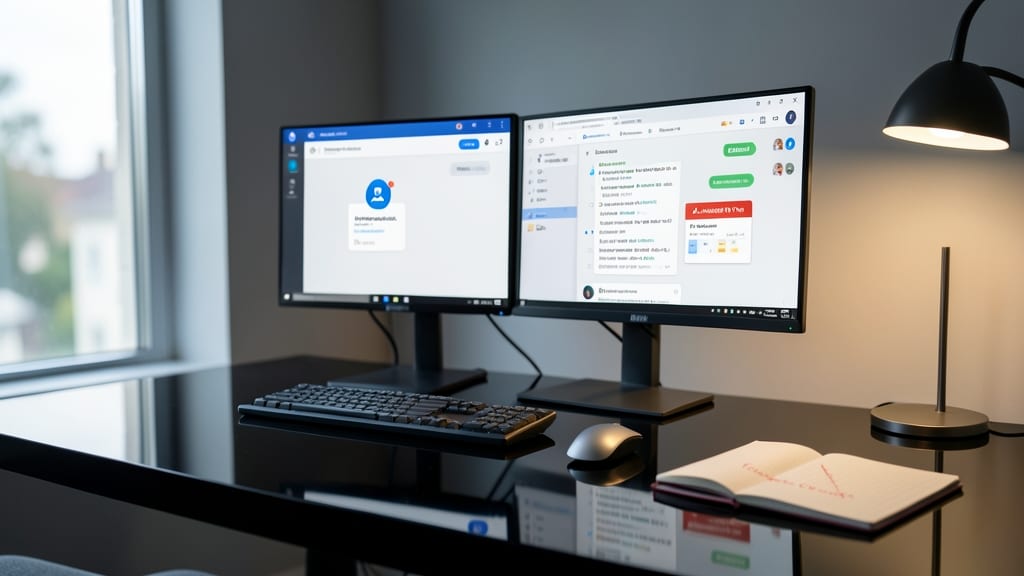
Tired of chasing down follow-ups or missing critical updates? Microsoft Teams’ advanced reminder triggers let you automate proactive workflows by setting reminders based on real-time actions—like when a file is edited, a message is replied to, or a task is assigned. This game-changing feature ensures you never drop the ball on key interactions.
With customizable triggers, you can configure reminders to fire automatically when specific conditions are met, such as a file update in SharePoint or a customer reply in a support channel. For sales teams, this means instant follow-ups on leads; for support reps, it guarantees no ticket slips through the cracks. The system even supports multi-step workflows, like sending a reminder if a proposal isn’t reviewed within 24 hours. ⚡
This is a must-have for sales, support, and project managers who rely on quick responses and seamless collaboration. By turning passive tasks into proactive actions, you’ll spend less time tracking and more time executing. 💡