
PowerPoint
Want to elevate your PowerPoint presentations with polished, professional transitions? These seven transition effects help create smooth slideshow flow while keeping your audience engaged—without looking unprofessional.
Fade Slide Transition
When you need a transition that exudes professionalism without drawing attention away from your content, the Fade Slide Transition is the safest bet. Available in all modern PowerPoint versions—including PowerPoint 2016, 2019, and 365—it’s the default choice for boardrooms, client pitches, and academic lectures.
This effect smoothly blends one slide into the next by gradually adjusting opacity, creating a seamless flow that feels polished yet unobtrusive. Unlike flashy animations, the fade works universally across devices and screen resolutions, ensuring consistency whether you’re presenting on a 4K monitor or a projector. It’s also fully customizable: adjust the transition speed (slow, medium, fast) and add a subtle sound effect if needed.
Perfect for executives, educators, and trainers who prioritize clarity over flash, the fade keeps the focus squarely on your message. It’s the go-to for slideshows where subtlety and professionalism are non-negotiable. ✨
Slide Morph Transition
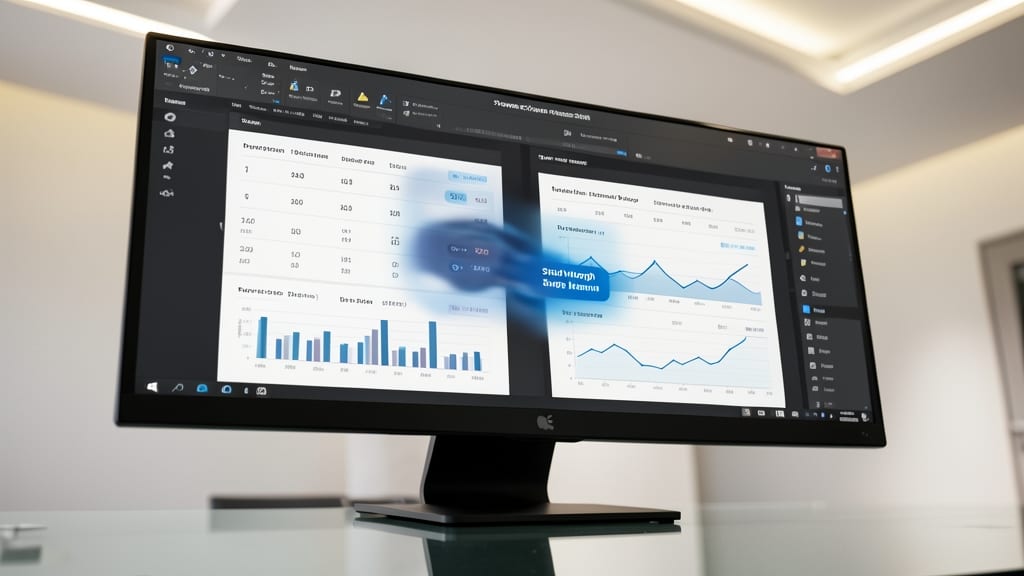
Tired of abrupt jumps between slides? The Slide Morph Transition in PowerPoint lets you smoothly transform one slide into another—ideal for data-heavy decks where you want to highlight gradual shifts in visuals.
Available in PowerPoint 2016 and later, this effect works best with similar layouts (e.g., bar charts evolving into line graphs). You can control the transition speed and direction (horizontal or vertical) to match your flow. Unlike basic fades, it visually connects related content, making complex ideas feel more cohesive.
Perfect for analysts, educators, or marketers presenting trends or comparisons—just ensure your slides share consistent elements for the smoothest results. ✨
Push Slide Transition
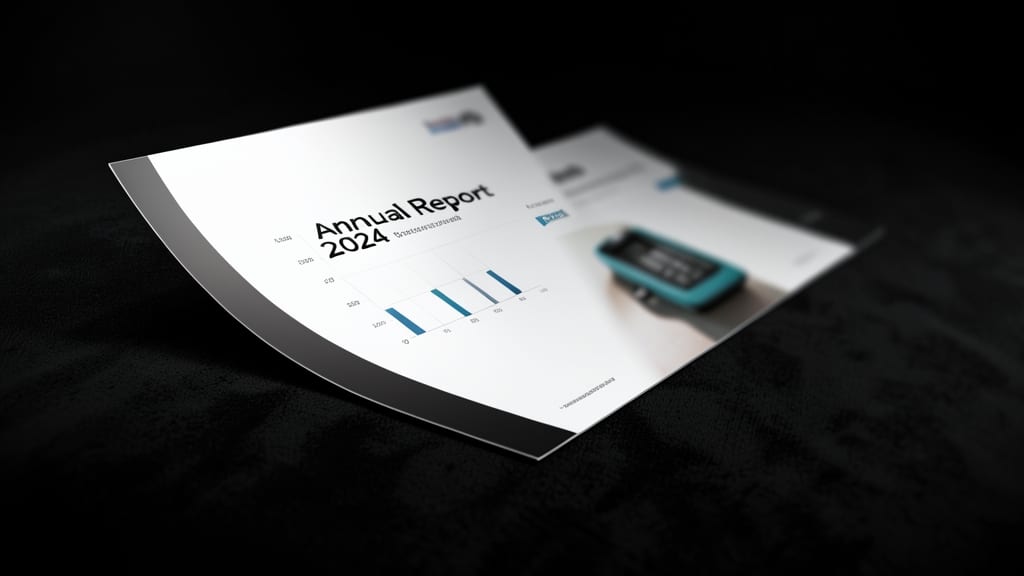
Looking for a transition that feels intentional yet unobtrusive? The Push Slide Transition delivers a cinematic effect by sliding one slide out while the next glides in—like a well-directed scene change in a film. This isn’t just motion for motion’s sake; it subtly guides your audience’s attention from one point to the next, making it ideal for narratives where pacing matters.
Available in PowerPoint 2016, 2019, and 365, this transition works best with horizontal or vertical alignment (left-to-right or bottom-to-top). You can adjust the speed (slow for emphasis, fast for momentum) and even add a sound effect (like a subtle "whoosh") to reinforce the storytelling. Unlike flashier effects, it avoids distraction while keeping the flow engaging.
Perfect for educators, marketers, or speakers crafting sequential stories—think product launches, case studies, or training modules. Use it to mirror real-world motion, like turning a page or revealing a new layer of content. ✨
Zoom Slide Transition

Need to make your product demo or keynote slide pop? The Zoom Slide Transition delivers a cinematic zoom effect that instantly draws attention to your focal point—whether it’s a bold title, product screenshot, or call-to-action. Unlike subtle fades, this transition creates visual impact by zooming in from a blurred background, ensuring your key message stands out.
Available in PowerPoint 2013 and later, this transition works seamlessly with custom timing (0.5s to 5s) and sound effects (like a subtle "whoosh" or "click"). Pair it with a high-contrast slide design (e.g., dark background + bright text) to maximize its dramatic effect. For best results, use it sparingly—once per section—to avoid overwhelming your audience.
Perfect for tech founders pitching investors, designers showcasing portfolios, or trainers launching workshops. Just don’t overuse it—this transition shines when reserved for moments that need emphasis. ✨
Wipe Slide Transition
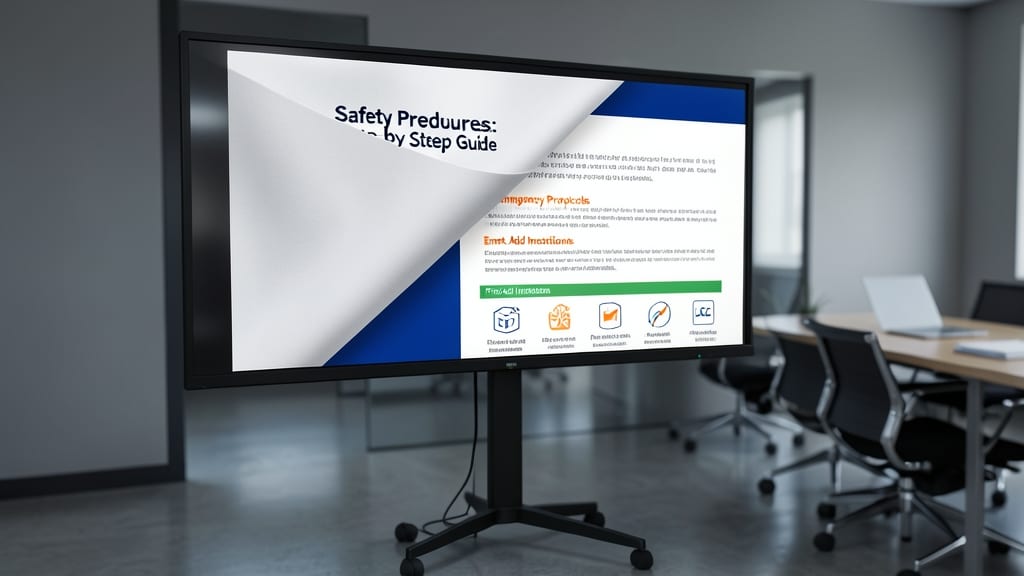
When clarity and direction matter most—like in training sessions or instructional guides—the Wipe Slide Transition delivers a crisp, curtain-like reveal that keeps focus sharp. Unlike flashy morphs or dramatic zooms, this effect mimics a physical wipe across the screen, ensuring content remains legible and uncluttered during transitions.
Available in PowerPoint 2013 and later (including Office 365), it offers four directional options (left, right, up, down) and pairs seamlessly with subtle sound effects for added polish. The transition speed is fully customizable, letting you control pacing for maximum audience retention.
Perfect for educators, trainers, or onboarding sessions, this transition ensures your step-by-step instructions stay the star of the show. ✨
Fade Through Black

Need to create suspense or elevate the mood of your presentation? The Fade Through Black transition is your secret weapon. Unlike standard fades, this effect fully darkens the screen before revealing the next slide, adding a cinematic touch that feels intentional and immersive.
It’s available in PowerPoint 2016 and later, including the Microsoft 365 version, and works seamlessly with custom timing to control the pause on black. The dramatic pause between slides makes it ideal for motivational speeches or creative pitches where you want to emphasize key moments.
Perfect for speakers who want to build anticipation—think TED Talks or brand storytelling—this transition feels premium without overwhelming the content. ✨
Split Slide Transition
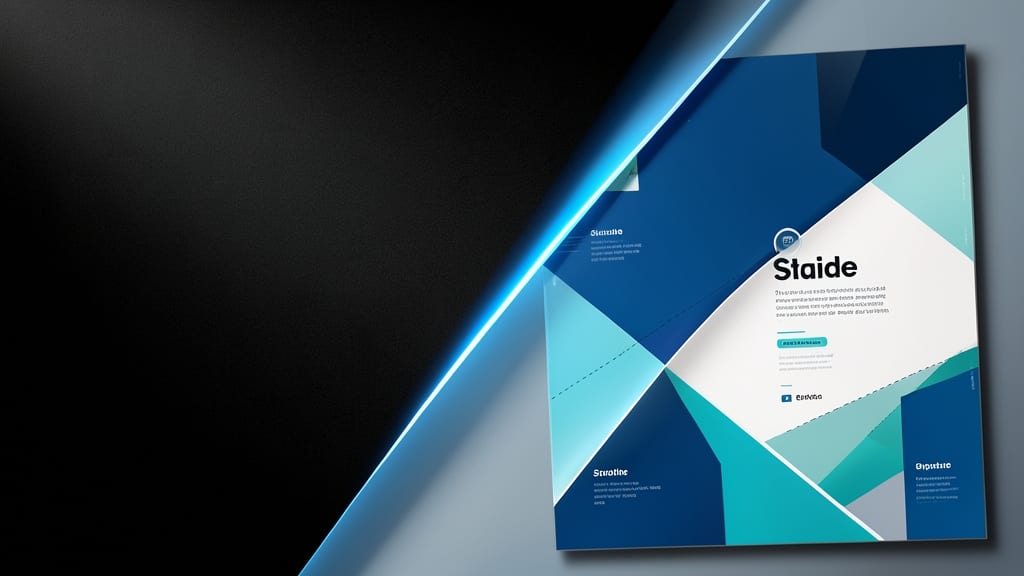
Looking to make your design-focused presentations pop with energy? The Split Slide Transition delivers a sleek, diagonal reveal that feels fresh yet intentional—perfect for breaking up monotony in visual-heavy decks.
This effect splits your slide along a customizable axis (horizontal, vertical, or diagonal), revealing content in two distinct halves that merge seamlessly. You can adjust the split direction and timing to control the reveal speed, while the smooth motion blur adds a polished cinematic touch. Unlike basic fades, it’s ideal for highlighting two contrasting elements (like before/after comparisons) or drawing attention to a split-screen layout.
Designers, creatives, and educators will love this for portfolio reviews or step-by-step tutorials where visual hierarchy matters. Just avoid overusing it—save it for slides where the split enhances the message, not distracts from it. ✨