
App
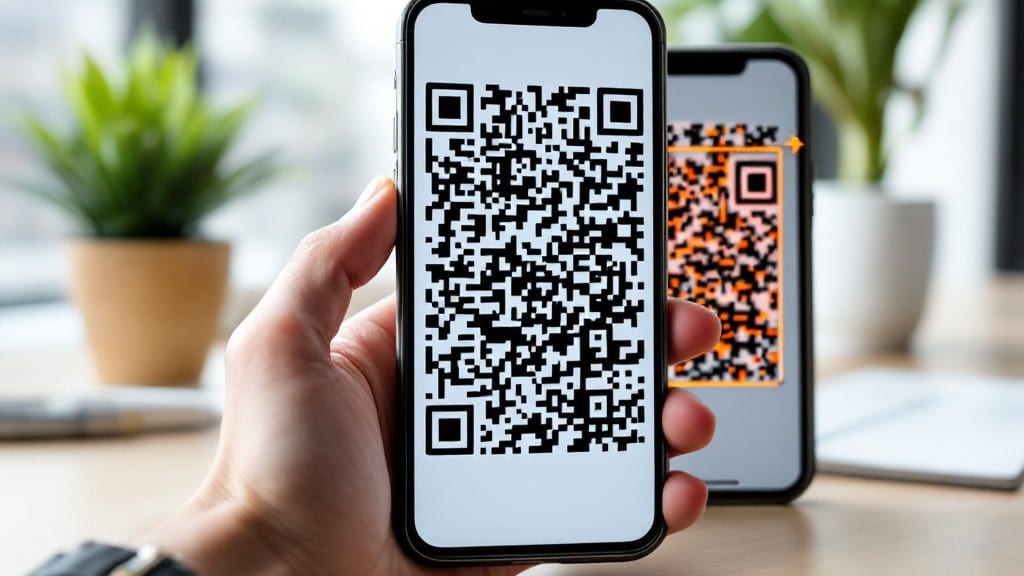
Adding an account to your authenticator app is the first step toward locking down your online life—no more password resets or sketchy SMS codes. ✨ I’ve set up accounts on Google Authenticator, Authy, and Microsoft Authenticator so many times, the process now feels like second nature.
The QR scan method is foolproof for most services, but I’ll cover manual entry too, just in case.
The only things you’ll need are your authenticator app installed (Google Play Store or Apple App Store), the service you’re adding (like Google or Microsoft), and a stable internet connection.
No special tools, no hidden fees—just your phone and a few taps. I’ve even included troubleshooting for the dreaded “invalid QR code” error, which happens more often than you’d think.
You’ll end up with a second layer of security that’s faster than typing passwords and harder to hack. Most apps generate backup codes during setup—write those down and store them safely. Trust me, the peace of mind is worth the two-minute setup.
Works for Android, iOS, and even desktop versions of authenticator apps. Let’s get started—no tech degree required.
📚 In This Guide
- What you need
- Instructions
- Tips and common mistakes
- Wrapping up and next steps
What you need
- ● Smartphone or tablet: Running Android (v5.0+) or iOS (v12.0+) with at least 50MB of free storage.
- ● Authenticator app: One of these (install from the App Store or Google Play): Google Authenticator
- ● Microsoft Authenticator
- ● Authy
- ● LastPass Authenticator
- ● 1Password
- ● Stable internet connection: Wi-Fi or mobile data (QR codes can be slow to scan over weak connections!).
- ● Account access: The login credentials (username/email + password) for the service you’re securing (e.g., Gmail, Facebook, or your bank).
- ● Backup method: A secondary device (e.g., laptop or another phone) with the same authenticator app installed for recovery.
- ● QR code reader app: If your authenticator app doesn’t have built-in scanning (like Google Authenticator does).
- ● Password manager: To securely store your account credentials while setting up 2FA.
Step-by-Step instructions for setting up multi-factor authentication with an authenticator app
Here's the straightforward process I follow to add accounts securely using QR codes.
🔧 Step 1: Install and Open Your Authenticator App
Download your preferred authenticator app from your device's app store—Google Authenticator, Microsoft Authenticator, or Authy all work well. Open the app after installation. I always verify the app icon matches the official branding to avoid phishing risks.
Most apps start with a "Begin Setup" or "Add Account" option. Tap this to begin. You'll see a screen prompting you to either scan a QR code or enter a secret key manually. For most services, scanning is faster and more reliable.
🖱️ Step 2: Access the QR Code from Your Account Settings
Log in to the account you want to secure. Navigate to the two-factor authentication or security settings section. Look for options like "Enable Two-Factor Authentication" or "Set Up Authenticator App." This is where you'll find your unique QR code.
I recommend keeping this window open on your computer while you work with your phone. Some services display the QR code only once, so you'll need to scan it immediately. If you see a secret key instead, you can enter that directly into the app.
💡 Step 3: Scan the QR Code and Verify the Code
Hold your phone steady over the QR code. Most apps will automatically detect and scan it within a few seconds. You'll see a new entry appear in your authenticator app with a six-digit code that updates every 30 seconds.
Return to your account settings and enter this code to verify the setup. Some services may ask you to enter additional codes from your authenticator app as part of their verification process. Once verified, your account is now secured with two-factor authentication.
⏰ Step 4: Test Your Setup Immediately
Log out of your account and try logging back in. You should receive a push notification or be prompted to enter the current six-digit code from your authenticator app. This confirms everything is working correctly.
I always keep my phone nearby during the first few logins to ensure I can access the codes when needed. If you ever lose access to your authenticator app, write down your backup codes provided during setup—they're your safety net.
Tips & tricks for adding an authenticator app
Here's what I've learned from setting up authenticator apps for myself and helping others get it right the first time.
Security First: Before you even install the app, make sure you're downloading from the official app store—not some third-party site. I've seen too many phishing attempts disguised as authenticator apps. Also, double-check the app icon matches the official branding. Google Authenticator's icon is a green G, Microsoft Authenticator's has a blue window logo, and Authy's is a purple A—don't let slight variations fool you.
QR Code Timing: In Step 2, when you access that QR code, move fast! Some services only display it once, and it disappears immediately after you navigate away. I keep my phone ready to scan before I even click "Enable Two-Factor Authentication." If you see a secret key instead, enter that directly—it's the backup option most people forget about.
Verification Process: That 30-second code update in Step 3 is crucial. Don't rush when entering it—typing errors can lock you out. I always verify the code appears in my authenticator app before entering it into the website. Some services require multiple codes, so pay attention to any additional prompts. This is where most people get stuck, so take your time.
Testing is Non-Negotiable: Skipping Step 4 is a mistake I've seen too often. After setting up, always test immediately by logging out and back in. This confirms everything works before you actually need it. I keep my phone nearby during the first few logins to ensure I can access the codes when prompted. And remember those backup codes? Write them down and store them securely—they're your safety net if you ever lose access to your authenticator app.
Pro Tips for Add To Authenticator App
- Here's what I've learned from setting up authenticator apps for myself and helping others get it right the first time.
- Security First: Before you even install the app, make sure you're downloading from the official app store—not some third-party site.
- QR Code Timing: In Step 2, when you access that QR code, move fast!
Frequently asked questions
Got questions about adding accounts to your authenticator app? You’re not alone! Here are answers to the most common concerns—whether you’re troubleshooting, optimizing, or just getting started.
Can I add an account to an authenticator app without a QR code?
Yes! Most authenticator apps (like Google Authenticator or Authy) let you manually enter the secret key instead. Look for an option like "Enter a setup key" or "Manual entry" in your app’s settings. Just grab the alphanumeric code from your account’s security settings page.
How long does it take to add an account to an authenticator app?
Adding an account is usually quick—under a minute if you’re scanning a QR code. Manual entry might take 2-3 minutes, especially if you’re copying the secret key from another device. Always double-check the code to avoid errors!
What if my authenticator app isn’t generating codes after setup?
First, ensure your device’s time and date are accurate (authenticator apps rely on this!). If the issue persists, try removing and re-adding the account. Some apps also have a "refresh" or "sync" option in their settings. If all else fails, contact the app’s support team.
Is it safe to use an authenticator app on my phone instead of a hardware key?
Yes, but with a few caveats. Authenticator apps are secure if your phone isn’t compromised (e.g., lost, stolen, or hacked). For maximum security, use a hardware key (like YubiKey) for critical accounts. Always enable a strong passcode or biometric lock on your device!
Can I use the same authenticator app for multiple devices?
Most authenticator apps (like Authy or Bitwarden) sync across devices via cloud backup or manual export. Just ensure you’re logged into the same account on all devices. Google Authenticator doesn’t sync by default, so you’ll need to manually add accounts to each device.
Wrapping up and next steps
Adding your accounts to an authenticator app is a game-changer for security—it’s quick, easy, and keeps your logins safe from hackers. 🔒 Whether you’re setting up Google Authenticator, Authy, or Microsoft’s app, the process is straightforward once you know the steps.
Now that you’ve mastered the QR-scan method, your accounts are one step closer to impenetrable protection!
Ready to take it further? Explore multi-factor authentication (MFA) for your most sensitive accounts—like banking or social media—to lock down your digital life even more. Your future self will thank you! 🚀