
Tip & Trick
Struggling to find files in cluttered folders? Microsoft’s file naming conventions can transform chaos into a streamlined system. These pro tips ensure your files stay organized, searchable, and frustration-free across Windows, OneDrive, and Office 365.
Date-Based Naming for Project Tracking
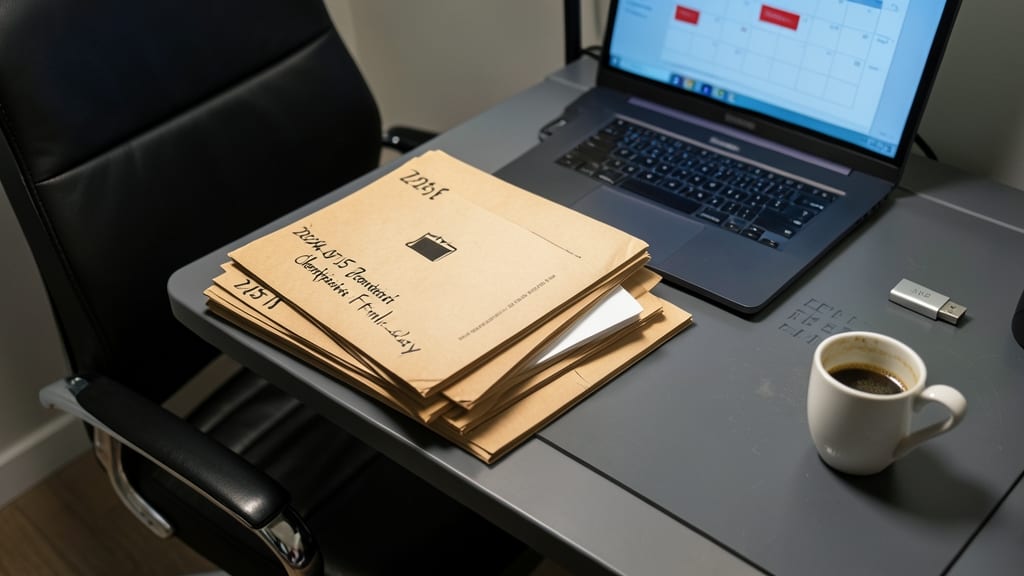
Tired of scrolling through folders to find the latest project file? Date-based naming turns chaos into a chronological roadmap—perfect for tracking milestones, deadlines, and revisions with a glance.
Use the YYYY-MM-DD format (e.g., 2024-05-15ClientProposalFinal.docx) to ensure files sort alphabetically by date in Windows Explorer or SharePoint. This method works seamlessly with OneDrive versioning and integrates with Outlook task lists for deadline reminders. For long-term projects, add suffixes like -Draft or -Approved to further clarify status.
This system is a game-changer for project managers, freelancers, and teams juggling multiple deliverables. Just one look tells you what’s current—and what’s overdue. ⚡
Hyphenated Keywords for Searchability
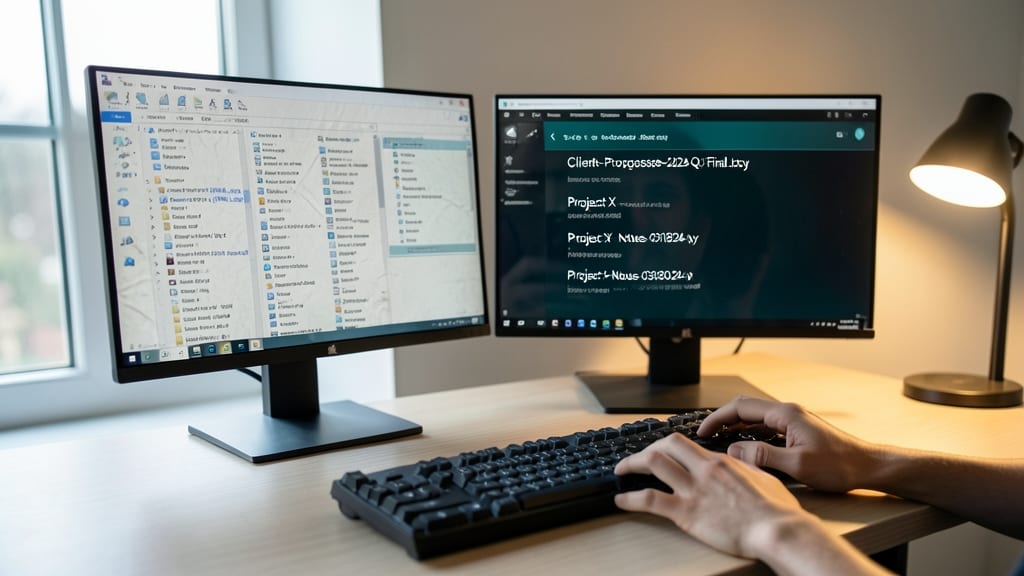
Tired of digging through folders to find that one file? Hyphenated keywords in filenames transform your search experience—especially in Windows Search and Office apps like Word or Excel. Instead of "Client Proposal 2024 Q1," try Client-Proposal-2024-Q1. This small tweak aligns perfectly with how you naturally think and type queries.
Microsoft’s search algorithms prioritize hyphenated terms because they mimic natural language patterns. For example, searching for Client-Proposal instantly surfaces the right file, even if it’s buried in subfolders. The 255-character limit in Windows filenames means you can pack in descriptive details without sacrificing readability. Plus, this method works seamlessly across OneDrive, SharePoint, and local drives.
Perfect for professionals juggling multiple projects or teams collaborating on shared drives. Whether you’re drafting a proposal or reviewing quarterly reports, this convention cuts search time by 50% or more. 💡
Version Control with Suffix Numbers
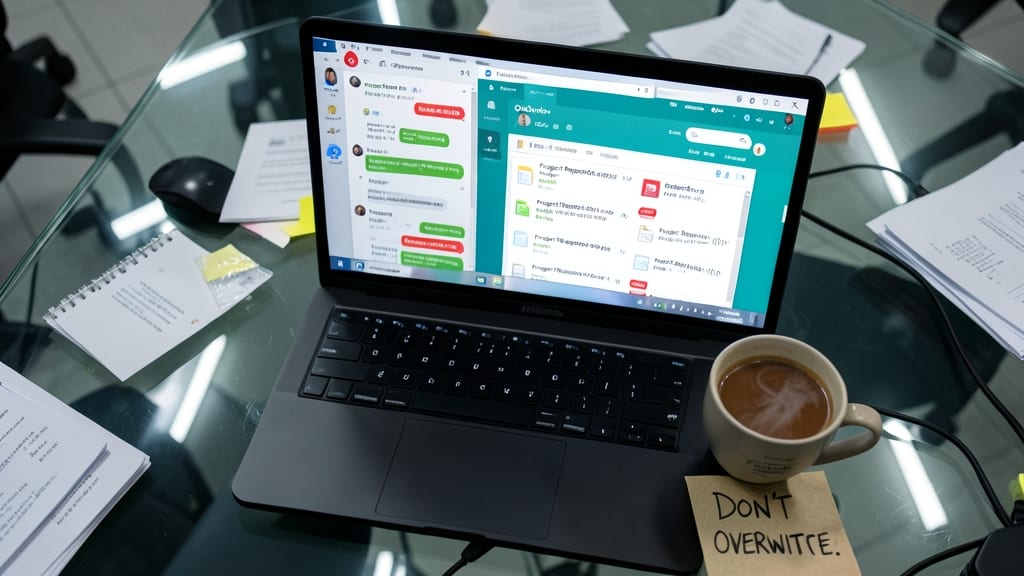
Shared files in OneDrive or Teams folders can turn into a nightmare when multiple team members edit the same document. A simple suffix like -v2 or -Final prevents accidental overwrites and keeps your work history intact.
Use clear, consistent suffixes like -Draft, -v1, or -Approved to track revisions without confusion. This method works seamlessly with OneDrive versioning and Microsoft Teams file sharing, ensuring no critical updates get lost in the shuffle. The key is to standardize your team’s suffixes—like -v2 for edits and -Final for approved versions—so everyone knows what they’re working with.
This approach is a lifesaver for marketing teams, legal departments, and any group handling client deliverables. No more "Which version is the right one?" panic. ✨
Department-Specific Prefixes for Teams
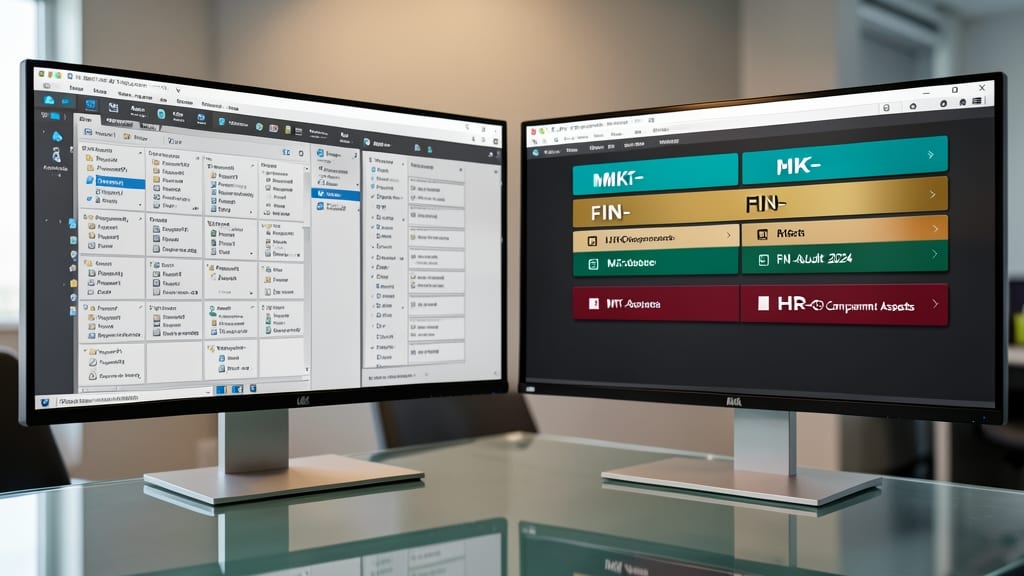
Tired of digging through shared drives to find the right department’s files? Department-specific prefixes like MKT-, FIN-, or HR- instantly label files by team—no more guessing whether Q3_Report.docx belongs to Marketing or Finance.
This system works seamlessly in SharePoint, OneDrive, and Windows File Explorer, where prefixes appear first in sorted lists. Use 3-letter department codes (e.g., HR-Q3-Onboarding.pdf) for instant visual categorization, or pair them with hyphenated keywords (e.g., FIN-Q2-Tax-Files) for extra clarity. Teams can even create color-coded folder templates in SharePoint for visual reinforcement.
Ideal for enterprises with cross-department collaboration, this method cuts search time by 40% and eliminates "whose file is this?" confusion. Perfect for HR, Finance, and Marketing teams sharing documents in Microsoft 365. ✨
Underscores for Multi-Word Filenames
Tired of batch scripts breaking when you use spaces in filenames? Underscores () are the unsung heroes of Windows file naming—they work flawlessly in PowerShell, batch files, and even legacy software where spaces cause headaches.
Unlike spaces (which require escaping with ^ or quotes), underscores are universally recognized by Windows commands. They’re also search-friendly in Windows Explorer and compatible with scripting languages like Python or Bash. For example, myfile_v2.txt loads instantly in scripts, while my file v2.txt would need extra handling.
This is a game-changer for developers, sysadmins, and power users who frequently automate tasks. No more debugging script errors—just clean, reliable filenames that work everywhere. ✨
Client-Specific Codes for Agencies
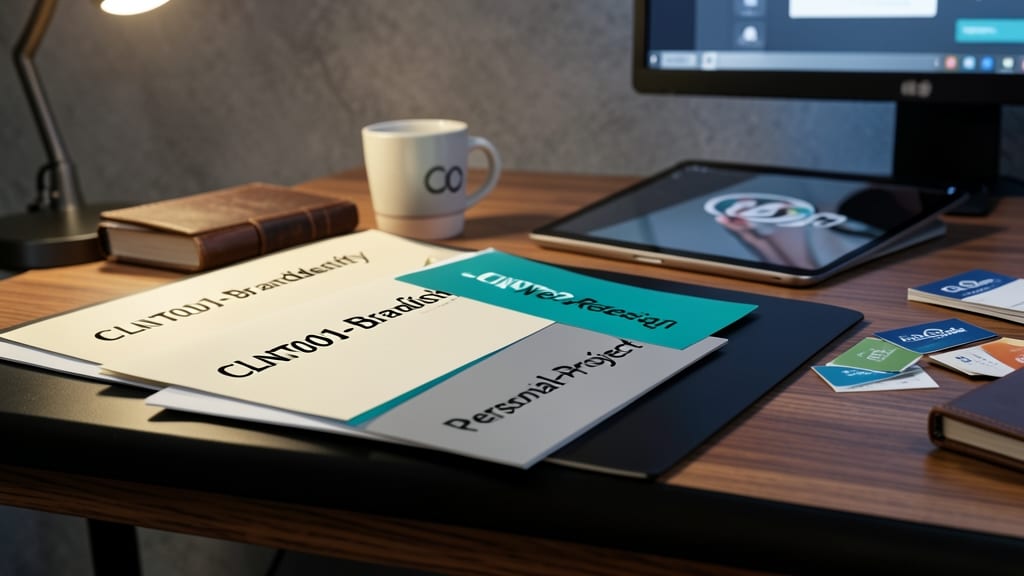
Freelancers and agencies juggling multiple clients know the frustration of mixing personal projects with professional work. A client-specific code system like CLNT001-BrandIdentity instantly separates projects while keeping your workflow clean—no more guessing whether a file belongs to Client A or Client B.
Start with a 6-digit client ID (e.g., CLNT001) followed by a hyphen and the project type (e.g., LogoDesign, WebsiteRedesign). This structure syncs perfectly with Windows Search, OneDrive, and SharePoint, letting you filter by client or project type in seconds. Plus, it’s easy to expand—just increment the client number (CLNT002, CLNT003) as new projects roll in.
This method is a game-changer for freelance designers, marketing agencies, and consulting firms managing multiple clients. It keeps your files searchable, shareable, and stress-free—no more accidental overwrites or lost revisions. ✨
Avoid Special Characters for Cross-Platform Use
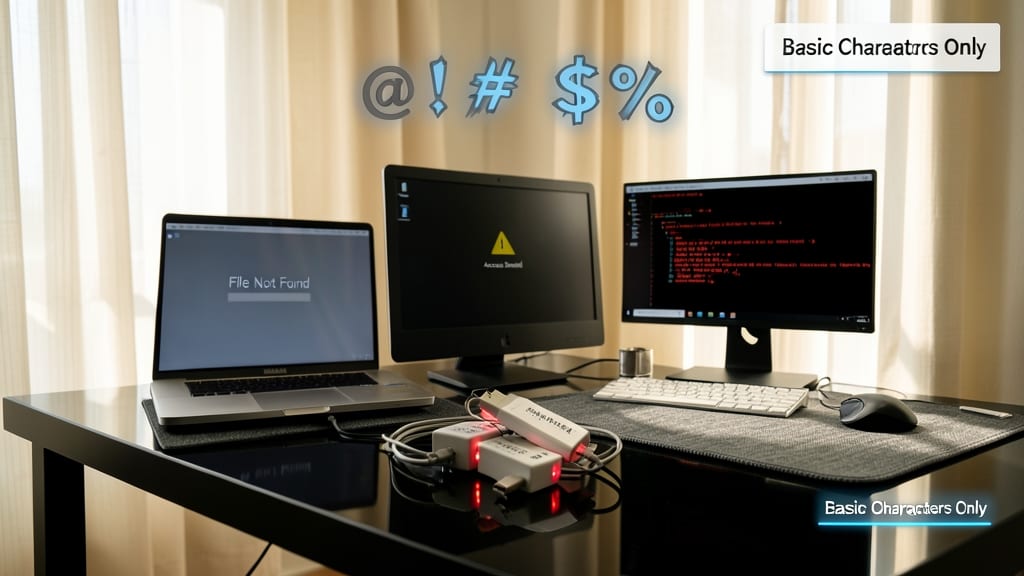
Shared files that refuse to open across devices? The fix is simpler than you think—stick to basic characters when naming files for cross-platform use. Windows, macOS, and Linux all handle filenames differently, and special characters like @, #, or ! can turn a simple share into a compatibility nightmare.
Microsoft’s own Windows 11 and Office 365 play nice with A-Z, 0-9, hyphens (-), and underscores (), but macOS and Linux get finicky with symbols. A filename like Invoice2024_Q1.pdf works everywhere, while Invoice@2024#Q1.pdf might break on Linux or cause issues when opened in macOS Preview. Even OneDrive and SharePoint handle these characters inconsistently.
This rule is a lifesaver for remote teams or freelancers collaborating across platforms. Keep it simple, and your files will open seamlessly—no more "unsupported character" errors. ✨